Workflow: a parts order, from order to delivered and paid
A parts sale with no fitting, from wherever it comes in (phone, quote, counter, Shopify, dealer portal) to the Orders desk, stock held, invoiced, picked, packed, shipped or collected, and paid.
Where it is
Settings for this
- Settings → Orders — Targets, who's on duty, alerts and customer update emails
- Settings → Shipping & freight — Ships-from address, freight margin, carrier cut-off
- Integrations → Freight carriers — Live rates and labels
- Integrations → Stripe — Card payments and pay links
A parts sale that leaves by courier or is collected, with no fitting. Each step has a button to the page where you do it and a link to its full guide. In BuildTrack's Help panel, when a button takes you to a page, Back to the guide (bottom right of the screen) brings you straight back here.
1. The order comes in
Every channel lands on one screen, the Orders desk. See The Orders desk.
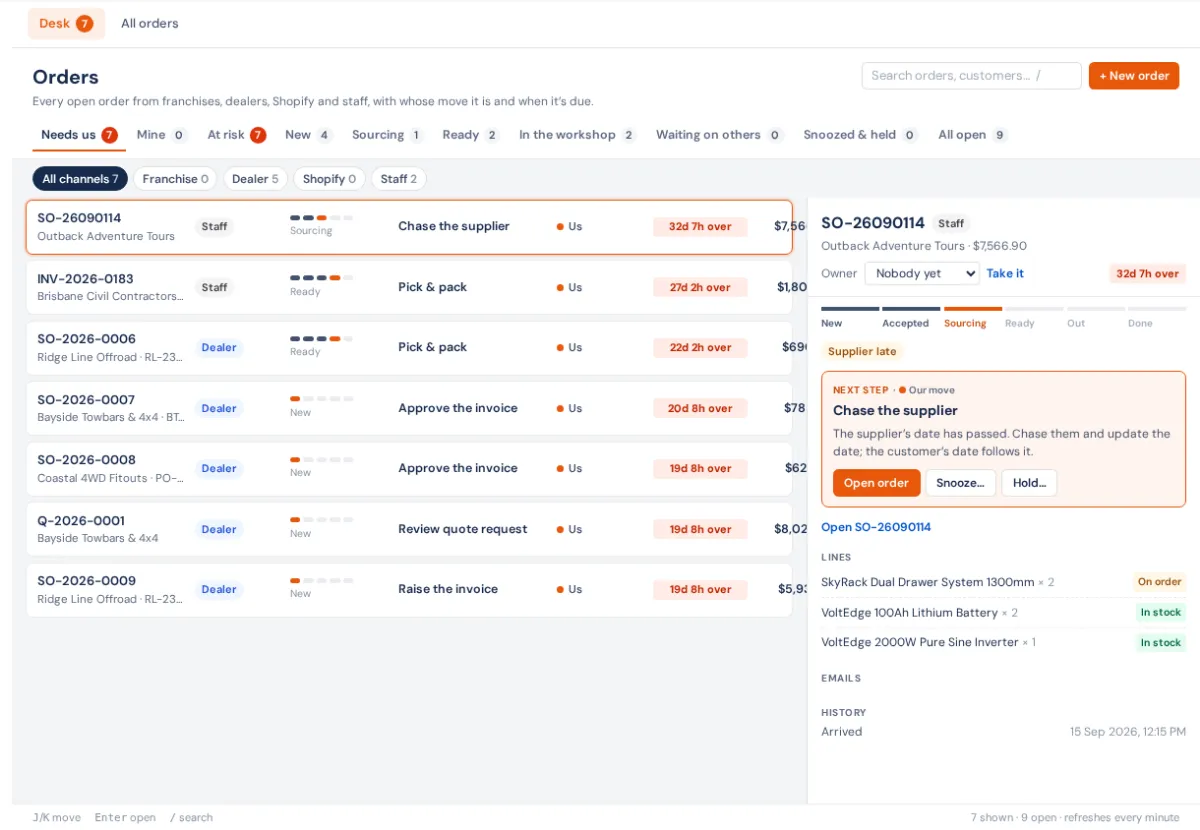
- By phone or email: + New order on the desk. Need the customer first? Create a contact.
- From a quote: Create and send a quote; once accepted it becomes a sales order. See Which way a sale goes.
- At the counter: Showroom POS takes payment on the spot; a sale that ships uses Ship to customer.
- From Shopify: What happens when a Shopify order arrives.
- From a dealer or trade customer: Dealer orders, and the dealer workflow.
2. Accept it and hold the stock
The desk's Next step button says what to do (Accept, Make the order…). The sales order holds free stock for each line. See Sales orders and Stock allocation.
3. Short on something?
The desk's Sourcing view lists what's short. Raise a PO for it (Other ways to raise a PO), or let Draft POs for what's short in Settings → Orders do it. What can't go yet becomes a backorder.
4. Invoice it
Generate Invoice on the sales order, check it and approve it. Approving doesn't move stock; dispatching does. See Create, approve and send an invoice. Want payment first? Send a pay link.
5. Pick, pack and send
The approved invoice appears on the Dispatch board.
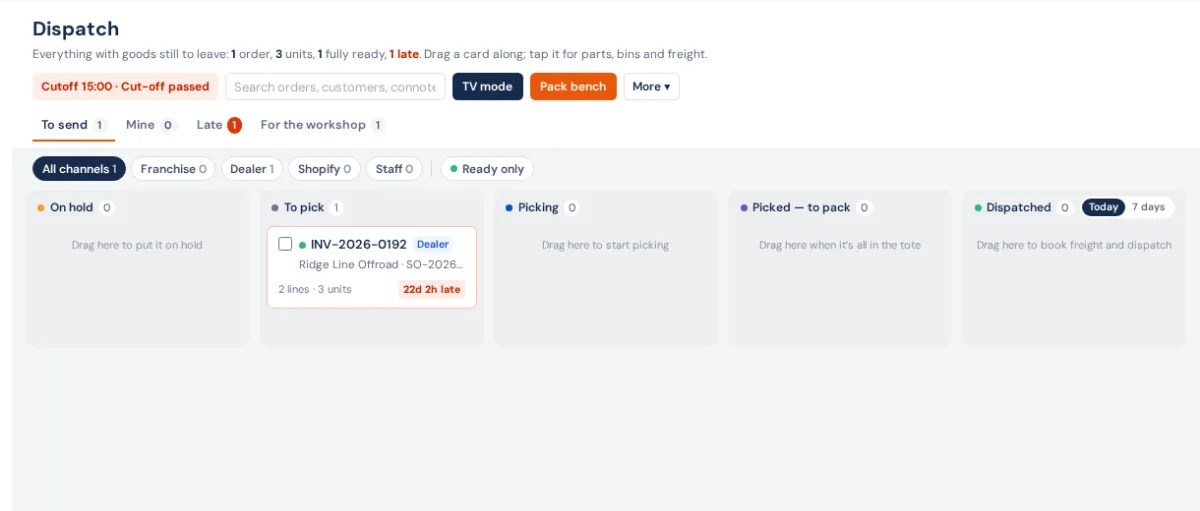
- Pick it (by bin, with a pick list or by scanning). See Get one order out the door and Pick lists.
- Pack it, at the pack bench if you use one. See The pack bench.
- Book freight for live rates and print the label, then Print label & dispatch. See Book freight and print labels.
- Being collected? Mark it collected instead.
Dispatching takes the stock out and sends the tracking. See The Dispatch board.
6. Get paid
Card via the pay link goes on by itself; otherwise Record Payment. Accounts customers get statements and payment reminders. See Take and record payments.
7. If it comes back
Credit notes and returns to stock.
The Orders course covers every channel with quizzes and badges.