Put BuildTrack on your phone's Home Screen
BuildTrack is a web app: there is nothing to download from an app store. Add it to your Home Screen and it opens full-screen like any other app, with the same login.
Settings for this
- Avatar menu → Notifications on this device — Turn on push notifications for this phone
BuildTrack runs in your phone's browser, so there is no app-store download. Adding it to your Home Screen gives you an icon that opens BuildTrack full-screen (no address bar), keeps you signed in, and works with the Scan Centre camera and push notifications. It takes about 20 seconds. The pictures below are illustrations of the screens you will see.
First, open https://www.buildtrackpro.au in your browser and sign in.
iPhone or iPad: Safari
- Tap the Share button (the square with an arrow pointing up) in the bar at the bottom of the screen (top right on iPad).
- Scroll down the list and tap Add to Home Screen.
- Leave the name as BuildTrack and tap Add (top right).
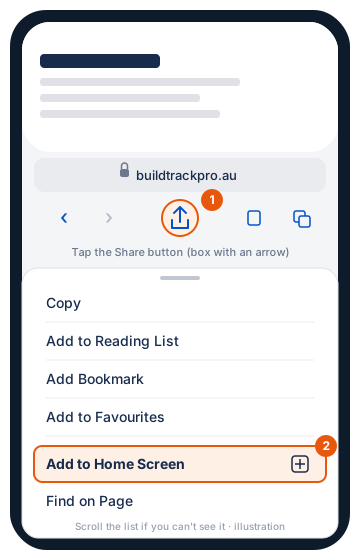
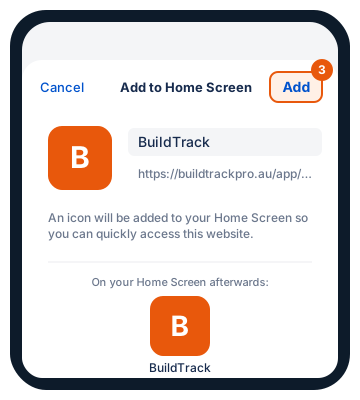
The icon appears on your last Home Screen page. Tap it to open BuildTrack as an app.
iPhone or iPad: Chrome
- Tap the Share icon at the right-hand end of the address bar (if your address bar is at the bottom, tap ⋯ then Share).
- Tap Add to Home Screen.
- Tap Add.
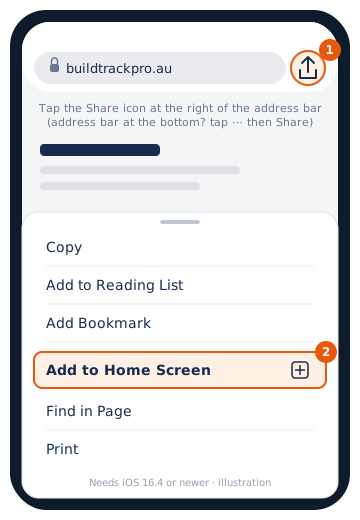
Chrome on iPhone needs iOS 16.4 or newer for this. On an older iPhone, open the same address in Safari and follow the Safari steps.
Android: Chrome
- Tap the three dots (⋮) at the top right of Chrome.
- Tap Add to Home screen (on newer versions of Chrome it reads Install app).
- Tap Add (or Install). Some phones ask once more; tap Add again.
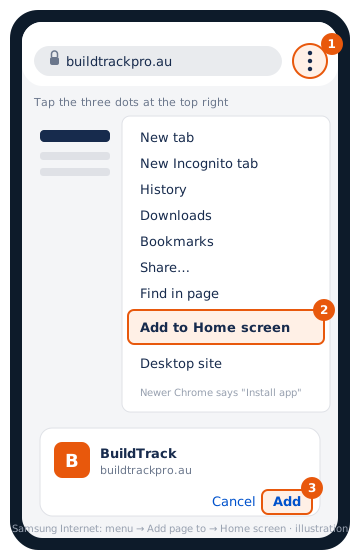
Using Samsung Internet? Tap the menu (≡) at the bottom right, then Add page to → Home screen.
Turn on notifications
When you first open the app, a banner at the top offers Enable notifications. Tap it and allow them when the phone asks. You can also do it any time from the avatar menu (top right) → Notifications on this device → Enable on this device; every role can open it. On iPhone and iPad, notifications only work in the Home Screen app (iOS 16.4 or newer), not in a Safari tab. See Notifications.
Afterwards
- Open BuildTrack from the new icon, not from the browser, to get the full-screen version.
- You stay signed in. If the app ever asks you to sign in again, use your normal BuildTrack email and password.
- Updates arrive on their own; there is nothing to reinstall. If a screen looks out of date, close the app fully and open it again.
- To remove it, hold the icon and choose Remove App (iPhone) or Uninstall / Remove (Android). Your data lives in BuildTrack, not on the phone, so nothing is lost.
If something's not right
- No "Enable notifications" banner: you may have dismissed it. Use the avatar menu → Notifications on this device instead; it doesn't need Settings.
- "This browser has blocked notifications for BuildTrack": allow them from the lock icon in the address bar (or the phone's Settings → Notifications → BuildTrack), then reload.