Scan Centre: every mode
Receive deliveries, look stock up, move it, count it and put returns back — all by scanning. Every mode in one strip.
Where it is
Settings for this
- Settings → Roles — Which modes each role sees (Inventory permissions)
- Warehouse → Manage — Warehouses and their pick rule
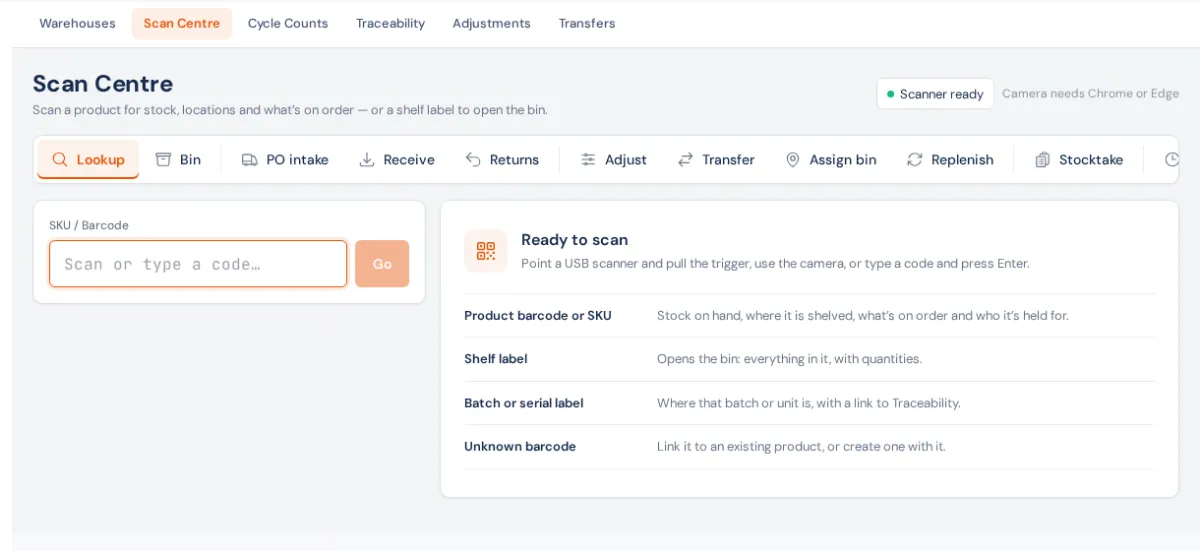
Open Warehouse → Scan Centre. A USB or Bluetooth scanner works anywhere on the page — no need to click into a field. On a phone or tablet, the Camera switch at the top right turns the camera scanner on or off (remembered on that device). Bins are always scanned or typed from the shelf label, never picked from a list.
The modes sit in one strip, grouped by job:
Find
- Lookup — scan a product: on hand, available, on order, its bin, reorder point, Where it lives (every bin), On order, Held for (orders it's reserved to), Barcodes and Picking. Buttons: Receive, Adjust, Transfer, Locate in bin, Add to job (scan the job card), Build / break kits (kits only), Print label, Open product →.
Scan a document number instead and you get its next step: a sales order or invoice → Pick this order; a workshop job → Pick parts for this job; a purchase order → Receive in PO intake; a credit note → Put returned goods back. Scan a shelf label and the bin opens. An unknown barcode offers to link it to a product — as Its main barcode or An extra barcode (a carton or supplier code, with how many each scan counts). See Barcodes and labels.
- Bin — scan a shelf label to see everything in it. Move whole bin, Move some items…, Print label, Set min / max.
Receive
- PO intake — the right way to receive a supplier delivery. Scan the PO number (or pick from Awaiting delivery), then scan each item as you unpack (supplier barcodes, carton barcodes and supplier SKUs match too). Choose the Warehouse and Bin, add a Receipt note, and post. The PO, backorders waiting on the stock and costing all update. Supplier pack sizes convert to stock units.
- Receive — stock without a PO: found stock, opening stock. It never updates a purchase order. It shows a Suggested put-away (see Pick and put-away rules).
- Returns — scan the credit note, then each item coming back, choose Put back into, and post. It can't put back more than the invoice shipped. See Credit notes and returns.
Move
- Adjust — add or remove stock in a bin with a reason. Every adjustment can be undone from Activity.
- Transfer — move a product from one bin to another (Move all fills the quantity). For warehouse-to-warehouse moves with paperwork, use Transfers.
- Assign bin — scan a product, then the shelf it lives on. Fixes stock with no bin.
- Replenish — faces short for the open pick lists (Short for open picks), then pick bins below their minimum, each with Move N from (bin).
Count
- Stocktake — count a bin or a whole warehouse; saved as you scan, so you can pause and resume. See Cycle counts and stocktakes.
History
- Activity — what's been received, adjusted and moved, newest first (yours, or everyone's). Undo on an adjustment posts the opposite adjustment; both stay in the history.
Batches and serials
For a product that tracks batches or serials, receiving asks for the batch number (and expiry) or each serial, and you can print labels on receipt. Scanning a batch or serial label anywhere finds the product. See Traceability.
Who sees which mode
Each mode needs a permission (set in Settings → Roles):
- Lookup, Bin, Activity — View products & stock.
- PO intake, Receive — Receive stock (GRN).
- Adjust, Stocktake — Adjust stock levels.
- Transfer, Replenish — Transfer between locations.
- Assign bin, Set min / max, Set pick face — Edit products.
- Returns — Adjust stock levels, or create invoices.
No scan permissions means your role has none of these — ask an admin.
If something's not right
- The camera switch is missing. That browser can't read barcodes with the camera; use a scanner or type the code.
- "Lookup failed" / not found. Check the barcode is on the product, or link it from the not-found card.
- Can't move, adjust or count an Offsite bin. Offsite warehouses are a supplier's stock, not yours.