Warehouses, bins and stock levels
Stock is held per warehouse and per bin. Set up your warehouses and bins on the Warehouse page; offsite supplier warehouses show what a supplier holds but are never picked from.
Where it is
- Inventory → Warehouse — Stock Grid, Bin Locations, Movements, + Warehouse, Manage
- Warehouse → Scan Centre — Bin mode: see a bin, move it, set min / max
Settings for this
- Warehouse → Manage (edit a warehouse) — Name, code, address, default warehouse and its Pick from rule
- Warehouse → Bin Locations (edit a bin) — Bin role, walk position, scan code
- Settings → Shipping & freight — Which warehouse goods ship from
- Integrations → Supplier feeds — Where offsite supplier warehouses come from
Stock is counted per warehouse, and inside a warehouse per bin (a shelf, a rack position, a pallet spot). Open Inventory → Warehouse. The tabs along the top of the Warehouse area are Warehouses, Scan Centre, Cycle Counts, Traceability, Adjustments and Transfers.
The Warehouse page
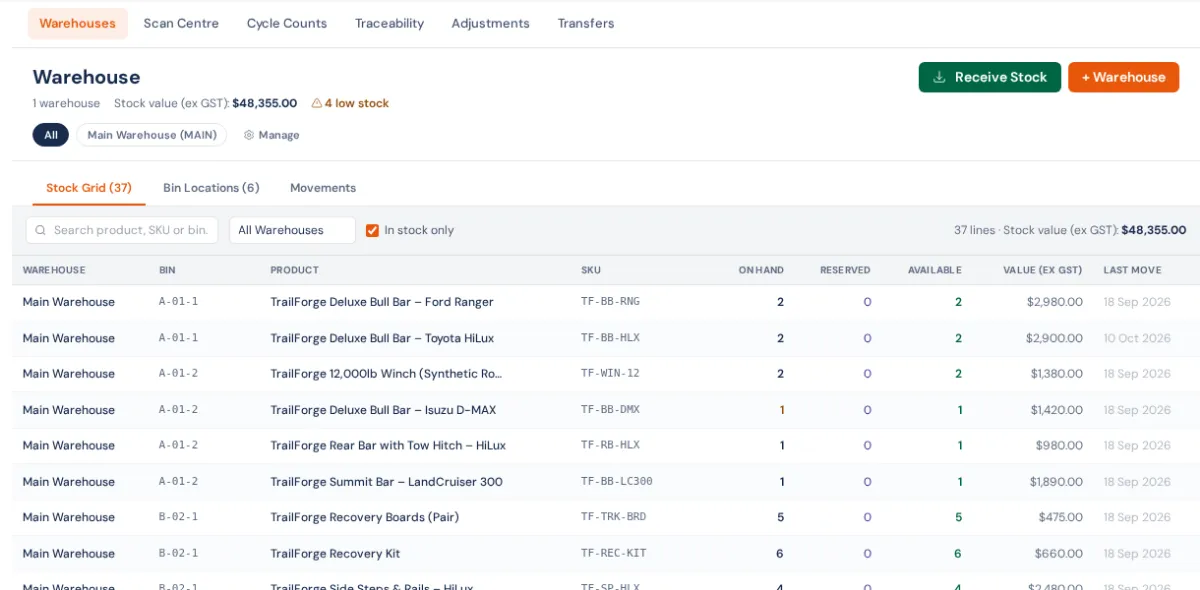
- The header shows how many warehouses you have, your stock value (ex GST) and how many lines are low stock. If you have offsite supplier warehouses, their value shows separately as Supplier offsite, because it is not stock you own. Stock values only show to people who can see costs.
- The pills under the header filter everything to one warehouse. Manage (the cog) edits them.
- Stock Grid — every product in every bin: On Hand, Reserved (held for orders), Available and its value. Untick In stock only to see empty lines too. A line with no bin shows Assign bin: click it and choose the bin it sits in. Click a bin label to see everything in that bin.
- Bin Locations — your bins, with what is in each, zone, aisle, scan code, Role, Walk position and Active. Click a row to see its contents, or Open in Scan Centre → from there.
- Movements — the last 200 stock movements: receipts, transfers, adjustments, picks, stock used and put-aways, with from and to bins.
Add a warehouse
- Click + Warehouse.
- Enter a Name (and an optional Code, e.g. WH1).
- Fill in the Address. Freight quotes from this warehouse are priced from it.
- Choose Pick from — how pick lists and dispatch choose which bin to take stock from. See Pick and put-away rules.
- Tick Make this the default warehouse if most stock lives here, then save.
To change one later, click Manage, then the pencil. Make default moves the default. The bin icon deletes a warehouse added by mistake. The window says up front if it can't be deleted:
- it's your default (make another the default first) or your only warehouse of your own;
- it still holds stock (transfer or adjust it out first);
- it has been used on documents (rename it instead);
- it's filled by a supplier feed, a sister business link or linked to a Shopify location (remove that link first).
Add bins
- On Bin Locations, click + New Bin.
- Choose the Warehouse, then fill in any of zone, aisle, rack, shelf, bin. The label builds itself from these (you can type your own Display Label).
- Add a Barcode / Scan Code if the shelf label carries a different code.
- Set the Role (Pick face, Reserve, Bulk, Staging, Quarantine) and, if you want a set walking route, a Walk position (1 is the first stop). Leave it blank and the walk follows zone → aisle → rack → shelf → bin, with A2 before A10.
Lots of bins? Click Template to download the CSV layout, fill it in, then Import CSV. You see a preview before anything is saved. Print labels prints a barcode label for every bin shown (filter first to print one aisle).
Offsite supplier warehouses
A supplier feed or a linked supplier can show a supplier's own stock as an Offsite warehouse (orange tag). You can sell and order against it, but:
- it is never picked or dispatched from, and never used up by a sale;
- you can't adjust, count or transfer it — it only changes when the supplier's feed updates;
- it has no pick rule and no bins to manage.
These are set up from Integrations → Supplier feeds or Integrations → Linked supply, not here.
If something's not right
- An order shows short but the product has stock. The stock is probably in another warehouse, or in an offsite one. Check the product's Levels tab or filter the Stock Grid by warehouse, then transfer it.
- Receive Stock does nothing. It needs at least one of your own (not offsite) warehouses.
- Stock values are missing. Your role can't see costs (See cost of goods in Settings → Roles).
- Every movement is kept. Receipts, dispatches, adjustments, transfers and counts are all journalled with who did them, so fix a wrong quantity with an adjustment, never by editing a number.