Get one order out the door, step by step
From a card in To pick to goods on the truck: claim it, pick it, book the label, dispatch — or mark it collected.
Where it is
Settings for this
- Settings → Shipping & freight — Ship-from warehouse, margin, cut-off, pack verification
- Settings → Orders — “On its way” customer email with tracking
1. Pick
- On Dispatch, click a card in To pick and press Start picking (or drag it to Picking). It's now yours. With several warehouses and "All warehouses" showing, you're asked which building to pick from.
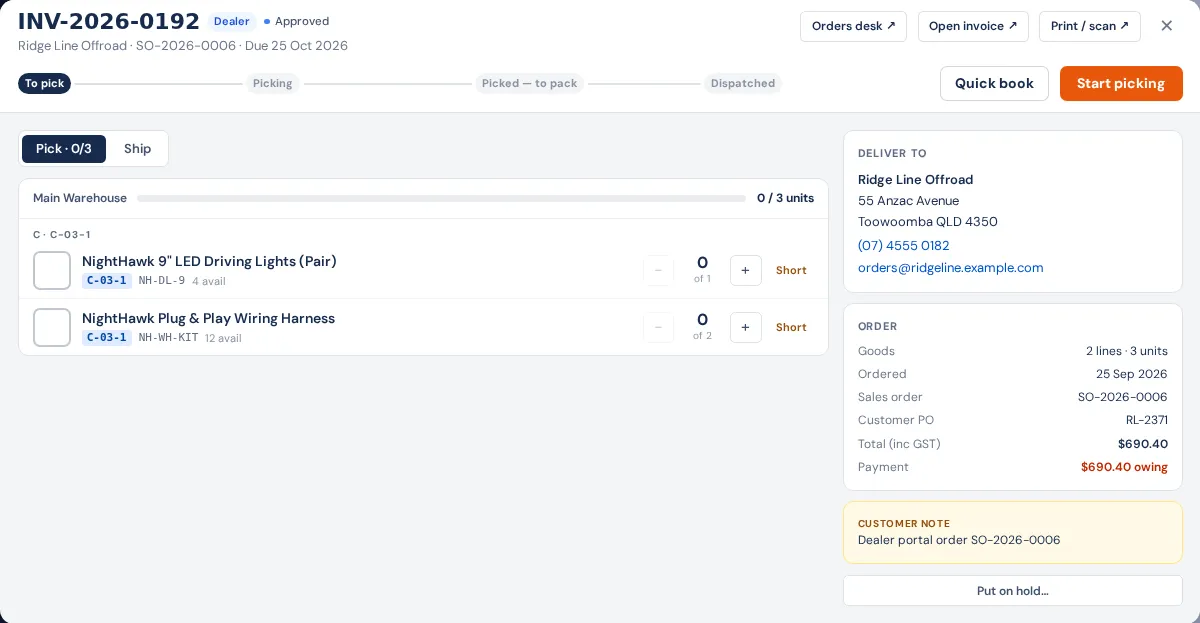
- Walk the Pick tab: lines are in bin order with the bin beside each. Tick each line as it goes in the tote. Every tick saves straight away.
- Kits show the kit with its parts; a product that ships as several cartons shows Box 1 of 4… with a square to tick per carton, so a missed box is obvious.
- Can't find it? Press Short and choose why (Not in the bin, Fewer than expected, Damaged, Wrong part in bin, Other). The bin is flagged for a count.
- Batch or serial tracked lines are scanned on the pick list.
- When "Everything's in the tote", press Finish picking. The card moves to Picked — to pack.
Small order? Quick book does steps 1–3 in one click and opens the carrier rates.
2. Pack (optional)
Several boxes, or you want every item checked? Take the tote to the Pack bench. If Require pack verification is on in Settings → Shipping & freight, a label can't be booked until the bench has verified the order.
3. Book freight and print the label
On the Ship tab press Book freight: live rates for the boxes, pick one, confirm and book. Once the order is fully picked the booking offers Print label & dispatch — printing the label dispatches the goods, takes the stock out and sends the tracking, then drops you back to the board. See Book freight and print labels.
4. Dispatch
If you didn't use Print label & dispatch, press Dispatch goods. The preview shows exactly what ships and what stays on backorder before anything moves; confirm it. You're warned if there's no tracking yet (Book freight first, or Dispatch without tracking) or if money is still owing on the invoice (Dispatch anyway is fine for an account customer).
Who hears about it:
- Shopify orders — Shopify emails the customer when the order is fulfilled.
- Franchise orders — the franchise sees the tracking on its purchase order.
- Everyone else — your "On its way" update in Settings → Orders if it's on, otherwise the tracking is emailed to the customer's address. No email on file means no tracking email.
Pickups and fitting orders
- Customer collecting — no freight. When they've got the goods, press Customer collected; that's what takes the stock out.
- Fitting order with no job booked — book the job from the card, or Mark fitted. Parts for booked jobs live under For the workshop.
Undo a step
← Back to picking or ← Put back in To pick on the right of the order (only before anything is ticked). Put on hold… parks it with a reason.