Raise, send and receive a purchase order
Order stock from a supplier: create the PO, add the lines, approve it, send it, then receive the delivery and bill it.
Where it is
- Purchasing → Purchase Orders — Every PO, with status, payment and overdue filters.
- New purchase order — Opens the New Purchase Order window.
- Purchasing → Suppliers
Settings for this
- Settings → Purchasing → Receiving controls — The PO approval limit and how much over the ordered quantity can be received.
- Settings → Purchasing — Daily payment reminders for COD and prepaid suppliers.
- Settings → Currencies — Fixed rates and bank margin used on foreign-currency POs.
- Settings → Roles — Who can view, create, edit and approve purchase orders.
A purchase order (PO) moves through Draft → Approved → Sent → Confirmed → Partially received → Received. You can cancel it any time before it is received.
1. Create the PO
- Open Purchasing → Purchase Orders and click + New PO. Or, on a supplier's page, click New Purchase Order under Quick Actions: the window opens with that supplier already picked.
- Pick the Supplier (head office and other network businesses are listed under Network), the Order Type (Stock Replenishment, Special Order, Job Procurement or SO Procurement), and optionally a Reference, Expected Delivery date and Notes.
- Tick Drop ship to customer if the supplier ships straight to your customer. See Drop ship a purchase order.
- Click Create PO. The order opens as a Draft.
No supplier yet? Add a supplier first. The PO is raised in the supplier's currency. For an overseas supplier see Order in the supplier's currency.
2. Add the lines
In Line Items, search a product by name or SKU, or type a free-text line, then enter the quantity and unit cost (ex GST) and click +.
- Paste multiple lines… takes a list of SKUs and quantities in one go.
- A product bought in packs shows the conversion (for example box → 50 ea), so you order in the supplier's unit and stock lands in yours.
- Kits: pick a kit and BuildTrack adds its parts (qty per kit × kits ordered), because a supplier sells the parts, not your kit. Click Order the kit as one item instead if the supplier really sells the whole kit.
- A free-text line is ordered and printed like any other, but it is not linked to a product, so on its own receiving it adds no stock. Pick a catalogue product whenever you want the stock counted. If you forget, the Receive Stock window flags the line and lets you Link to a product before you receive.
- Set the Freight under Order Details. It is added to the total and the GST.
- On a draft you can Change the supplier without rebuilding the order.
Other places raise POs for you: a sales order's Order missing, a job's + Order Parts, a product's Reorder button and Replenishment. See Other ways to raise a PO.
3. Approve it
Click Approve. If you don't have the Approve purchase orders permission you see Waiting for approval instead, and someone who has it approves.
If your business sets an approval limit in Settings → Purchasing → Receiving controls, an order at or over it must be approved by someone with the permission other than the buyer (the owner can approve their own). If lines added after approval push the total over the limit, the order goes back to needing approval. Everyone who can approve it gets a notification, and it waits in their Approvals list, where Approve works too (see Approvals). See Purchasing settings and approval controls.
4. Send it
Click Send to Supplier and choose:
- Email — letterhead & PDF: the supplier's email gets your branded PO with the PDF attached. Customise the email lets you change recipients and the message.
- Record as ordered without emailing: for orders placed by phone, the supplier's portal or EDI.
Either way the PO becomes Sent. Use Mark Confirmed when the supplier confirms. The More menu also has Email Purchase Order (resend), Download PDF, Print and Print Part Labels. The printed PO carries a barcode for receiving in the Scan Centre.
If the supplier also runs BuildTrack Pro and you are linked to their dealer portal, the button reads Send to their business instead: the order lands in their system with no email, and their changes, invoice, dispatch and tracking flow back onto your PO.
Head office in a franchise network: the button is Send to HQ, after a price check. See Order from head office.
5. Track the delivery
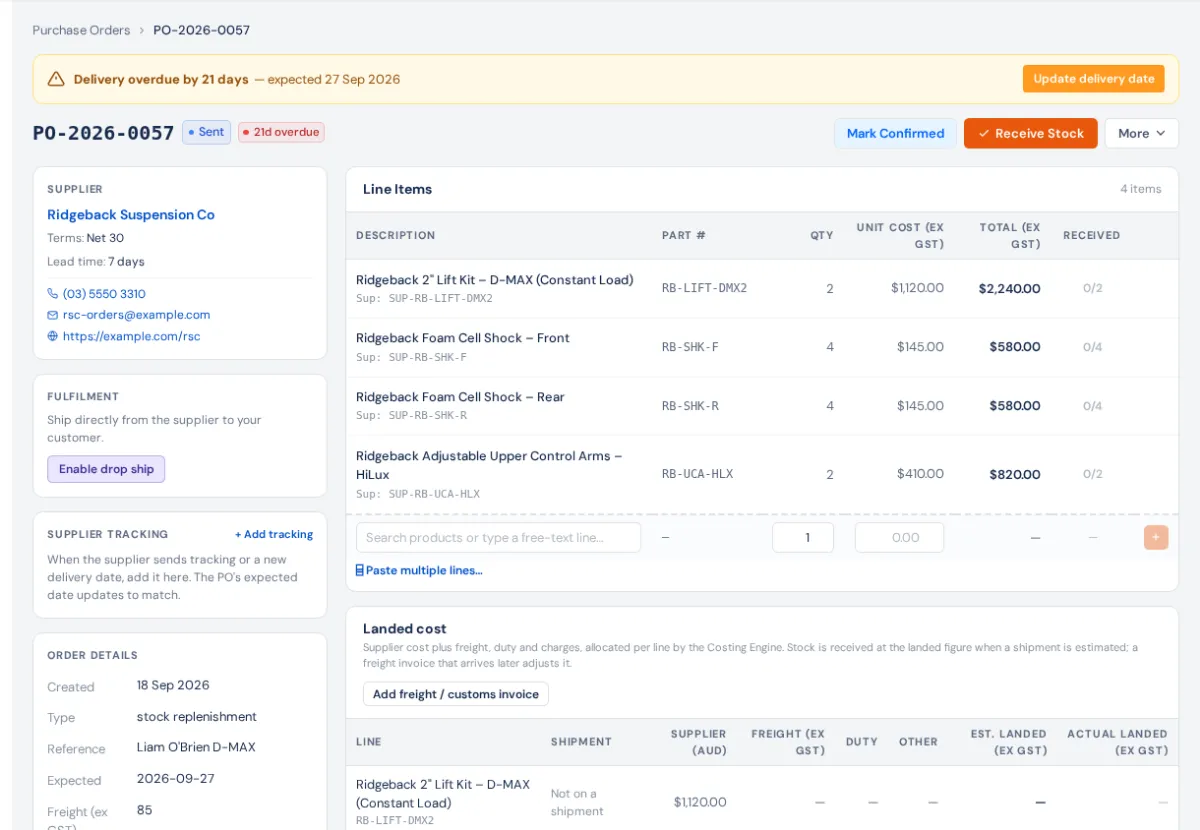
Add the carrier and tracking number, and the date the supplier now says it arrives, on the Supplier Tracking card. A new arriving date moves the PO's expected date. See Track a supplier's delivery.
6. Receive it
Click Receive Stock when the goods arrive, or scan the PO in the Scan Centre's PO intake. See Receive a purchase order.
7. Record the bill and pay
Record the supplier's invoice on the Supplier Invoice card (or upload it and let AI fill it in), push it to Xero as a bill, and record payments. See Supplier invoices, bills and payments.
Other actions (More menu)
- Place on Hold / Remove Hold marks the order on hold.
- Return for Credit raises a supplier return from received stock. See Return goods to a supplier.
- Cancel Order… cancels it, and any sales-order lines it covered go back to needing an order.
- Delete Draft… removes a draft for good.
Finding orders
The list opens on every open PO. Use the status tabs (All, Draft, Approved, Sent, Confirmed, Partial, Received), the Payment chips (Unpaid, Partial, Paid), Drop Ship and Overdue, the supplier filter and the sort. The cards across the top show open PO value, orders awaiting receipt, overdue deliveries and what is left to pay. Cancelled orders are hidden until you click Show cancelled under the table.
Who can do it
Roles carry View, Create, Edit and Approve purchase orders permissions, set in Settings → Roles. Pushing a bill to Xero needs Edit or Approve.
If something's not right
- No Receive Stock button: the PO must be Sent, Confirmed or part received. A drop-ship order has Mark Shipped to Customer instead, and an external-service order has Mark Collected.
- "This purchase order exceeds your approval threshold": approve it first. Over the limit, the buyer can't approve their own order.
- Email option greyed out: the supplier has no email. Add one on the supplier, or record it as ordered.
- Lines can't be edited: the order is linked to a supplier on BuildTrack Pro or has gone to head office, so its lines follow their side. Once the order is fully received, only line prices can change (the stock on hand is revalued).