Receive a purchase order
Book a delivery into stock: enter what arrived, pick the warehouse, put it away to the suggested bins and print labels. Part deliveries are fine.
Where it is
- Purchasing → Purchase Orders — Open the PO and click Receive Stock.
- Warehouse → Scan Centre → PO intake — Scan the PO, then each item as you unpack.
Settings for this
- Settings → Purchasing → Receiving controls — Over-receipt tolerance: how far over the outstanding quantity you can receive. Blank means exact.
- Warehouse → Warehouses — Bins, bin roles and min/max that decide the put-away suggestion.
Receive from the PO
- Open the PO. Receive Stock shows once it is Sent, Confirmed or part received.
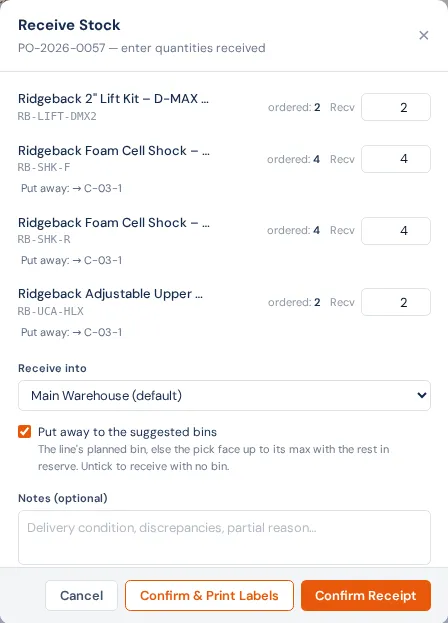
- Each outstanding line starts at what is still to come. Change Recv to what actually arrived. Set a line to 0 to leave it for later.
- Check Receive into: the warehouse the delivery goes to (the order's own warehouse, else your default).
- Put away to the suggested bins: each line shows where it goes. That is the line's planned bin if it has one, otherwise the product's pick face up to its maximum with the rest in a reserve bin. Untick it to receive with no bin.
- Batch- or serial-tracked products ask for the batch numbers (with expiry) or serials.
- A free-text line (no product picked) is flagged Not linked to a product. Click Link to a product, search by name or SKU and pick it: the line is linked and its stock lands when you receive. Leave it unlinked and the delivery is recorded but no stock is added.
- Add a note if something was damaged or short, then click Confirm Receipt, or Confirm & Print Labels to print part labels for exactly what arrived.
Receiving does three things at once: stock goes up in that warehouse, the PO's received quantities move on, and any sales orders or backorders waiting on those products are allocated the stock. The order reads Partially received until everything is in, then Received. Every receipt is listed under Receipt History on the PO.
Receive with the scanner
In the Scan Centre choose PO intake, scan the barcode on the printed PO, then scan each item as you unpack. It updates the order, backorders and costing the same way. See Scan Centre.
More than was ordered
A supplier who ships 105 of 100 can be received only if you set an Over-receipt Tolerance in Settings → Purchasing → Receiving controls. Within it, the extra is recorded as an over-receipt. Without one, you can receive only what is outstanding.
Special cases
- Drop ship: nothing is received. Click Mark Shipped to Customer once the supplier has shipped. See Drop ship a purchase order.
- External service (sublet): click Mark Collected when the work is done.
- Order to head office: you can receive only what head office has dispatched. The box starts at what is on its way.
- Foreign currency: stock is costed at the line cost × the order's exchange rate, or at landed cost once the order is on an estimated shipment. See Landed cost.
- Charged to a stock vehicle (Dealer Management): stocked parts on a charged line are issued to the vehicle when received. See Charge a PO to a stock vehicle.
If something's not right
- "Pick the warehouse this delivery is going into": set up a warehouse first under Warehouse → Warehouses.
- "… exceeds the N% over-receipt tolerance": you entered more than the order allows. Receive the outstanding quantity, or raise the tolerance.
- The line shows received but stock didn't move: it was a free-text line received without linking it to a product. Add the stock with a stock adjustment. Next time pick the product on the PO line, or use Link to a product in the Receive Stock window.
- No suggested bin: the product has no pick face or bins in that warehouse. See Warehouses and bins.
- Received too much by mistake: return the extra to the supplier with Return for Credit, or correct it with a stock adjustment.