Create and send a quote
Make a quote from scratch or a template, add the lines, set its type, deposit and expiry, then send the customer a secure proposal link by email or SMS.
Where it is
- Sales → Quotes — Every quote, with tabs for each status
- New quote — Opens the New Quote box straight away
- Quotes → Templates — Prebuilt layouts to start from
Settings for this
- Settings → Quotes & invoices — Default quote terms, the minimum gross profit floor, and internal quote approval
- Settings → Modules & flow — What an accepted quote turns into, and whether the quote Type shows
- Settings → Branding — Logo and brand colour on the quote, PDF and proposal
- Integrations → Stripe — Quote deposits: let the customer pay the deposit by card when they accept
- Integrations → Customer Messaging — Needed to send the quote by SMS, and for approval reminders
- Settings → Roles — Create, edit, send and approve quotes; see profit & margin %
Who this is for: anyone who prices work for customers. You need the Create quotes permission; sending needs Send / publish proposals.
Where it is
Sidebar Sell › Sales › Quotes (open Quotes). The tabs across the top are Quotes, Deferred Work (when the Workshop module is on), Templates and Build Requests (Build requests). The list has status tabs: All, Draft, Awaiting Approval, Sent, Changes Requested, Accepted, Declined and Expired, plus a search and a Quote type filter.
Step by step
- Press + New Quote (or New quote). You can also start one from a contact's or company's page.
- In New Quote, pick the Customer (or Company) and the Vehicle if it matters. A quote raised from a customer with one vehicle takes it without asking.
- Optionally pick a layout under Start from template. Templates that fit the vehicle are listed first. See Quote templates.
- Press Create Quote. The quote opens on the Quote Builder tab.
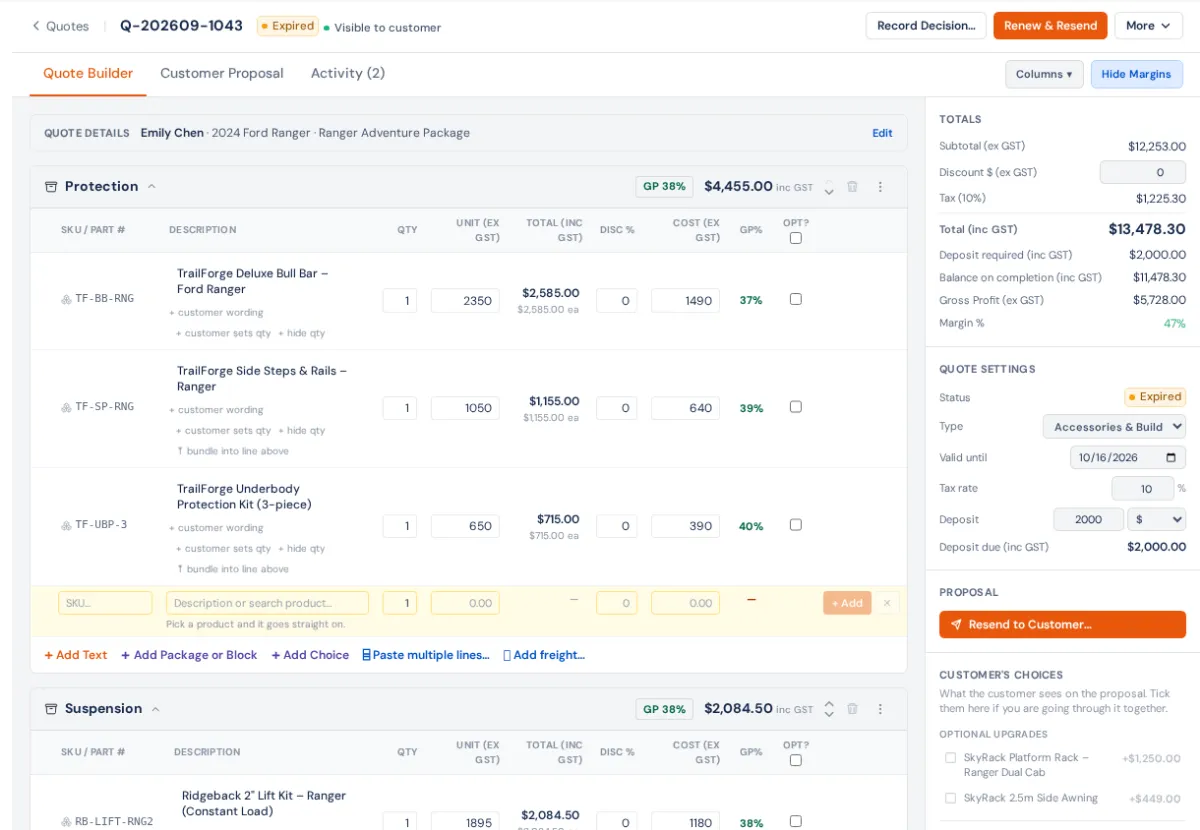
- Add a section and the lines. Type a section name (or keep Parts & Labour) and press Start with this section. In the line row, type a description or search for a product, set the qty and price, and press + Add. The buttons above the builder add more: + Add Section, 📐 Apply Template, 🔧 Canned Job and ✨ AI Assistant. Under each section: + Add Text, + Add Package or Block, + Add Choice, ⌸ Paste multiple lines… and 🚚 Add freight…. All of these are in Quote lines, options and bundles.
- Check the right rail. Totals shows the subtotal, the Discount $ (type it here), GST and the total. Under Quote Settings set:
- Type: Service & Repair or Accessories & Build. It decides where the quote goes once accepted (only shown while the Workshop module is on). See Which way a sale goes.
- Valid until: new quotes get 30 days. After this date the quote is marked Expired by itself.
- Deposit: $ fixed, % of the total, or Items (the lines you tick Dep? on). The rail then shows Deposit required and Balance on completion.
- Quote Details (top of the builder) holds the Title, Build Purpose, Intro Text (shown on the proposal) and Internal Notes (never shown to the customer). Press More — terms & PDF notes for this quote's Terms & Conditions (blank uses your default) and Notes printed on the quote.
- Preview it. The Customer Proposal tab shows exactly what the customer will see.
- Send it. Press Send to Customer. In Send Quote tick Email — letterhead, PDF & review link and/or SMS — short message with the link, then press Send Quote. Customise the email (recipients, message) → lets you edit the email first. Handed it over another way? Tick Record as sent without messaging (the button becomes Mark as Sent).
- The quote moves to Sent. The Proposal card in the rail has Copy Proposal Link if you want to paste the link somewhere yourself.
After you send it
- The customer opens the link, picks any options and presses Accept This Proposal, Request Changes or declines it. See Online approval and proposals.
- The quote's owner gets a bell when it's accepted, declined or changes are requested.
- Chasing it: see Quote follow-ups and reminders.
- Once it's accepted, it becomes a sales order, a workshop job or an invoice. See From quote to invoice.
The header button changes with the quote
| The quote is | The main button |
|---|---|
| Draft | Send to Customer (or Submit for Approval if an approval rule applies) |
| Awaiting approval | Approve (for approvers), with Reject beside it |
| Sent or viewed | Resend to Customer, with Record Decision… beside it |
| Changes requested | Send Revised Quote |
| Expired | Renew & Resend |
| Declined | Duplicate Quote |
| Accepted | Create Sales Order, Create Workshop Job or Create Invoice (see Which way a sale goes) |
The ⋯ menu has Revise Quote…, Revision History, Duplicate Quote, Save as Template…, Download PDF, Print and Delete Quote.
Printing and the PDF
Print opens the printable quote. Include Terms & Conditions is a tick box on the print page, off by default so a print run stays short. Download PDF leaves the terms off. The PDF attached to an emailed quote carries them.
Margins
Lines priced under cost, or under your Minimum Gross Profit (%) in Settings → Quotes & invoices, are flagged in the builder. Profit and margin figures (and the Cost and GP% columns) only show to people with See profit & margin %.
Settings that change this
| Setting | Where | What it does | Default |
|---|---|---|---|
| Default Quote Terms | Settings → Quotes & invoices | The terms on every quote unless the quote has its own | Blank |
| Minimum Gross Profit (%) | Settings → Quotes & invoices | Flags lines below this margin (below cost is always flagged) | Blank: below cost only |
| Quote Approval | Settings → Quotes & invoices | Big or low-margin quotes need a manager's OK before sending. See Quote approval rules | Off |
| When a quote is accepted | Settings → Modules & flow | Job, sales order or invoice | By quote type |
| Quote deposits | Integrations → Stripe | The customer pays the deposit by card as they accept | Off |
| Quote approval reminder | Integrations → Customer Messaging, Automations | Nudges the customer 2 and 5 days after sending | Off |
If something's not right
- Send is greyed out or says "Add a customer to this quote first". Add the customer at the top of Quote Details.
- The button says Submit for Approval. An approval rule caught this quote. See Quote approval rules.
- SMS isn't offered. The contact has no mobile, or Customer Messaging isn't connected.
- I need to change a quote I've already sent. ⋯ › Revise Quote… puts it back to draft and the customer's link stops working until you send it again. An accepted quote's acceptance is voided.
- The customer can't be changed. Once a quote is accepted, its customer is fixed on the order, job or invoice. Revise the quote to change it.