Online approval and proposals
The customer opens a secure link, picks options, asks questions, and accepts with an electronic signature (and a card deposit if you take one). You can record a yes or no taken by phone.
Where it is
- Sales → Quotes — The Sent and Changes Requested tabs
Settings for this
- Integrations → Stripe — Quote deposits: take the deposit by card right after they accept
- Settings → Branding — Your logo and colour on the proposal page
- Settings → Quotes & invoices — Default quote terms the customer agrees to
Who this is for: sales staff and service advisers.
What the customer sees
Send to Customer sends a secure link (no login). The proposal shows your branding, the intro, every line (with images where set), the total with GST, the deposit and the balance, plus any attachments and, for a job, the inspection results. To see it yourself, open the quote's Customer Proposal tab.
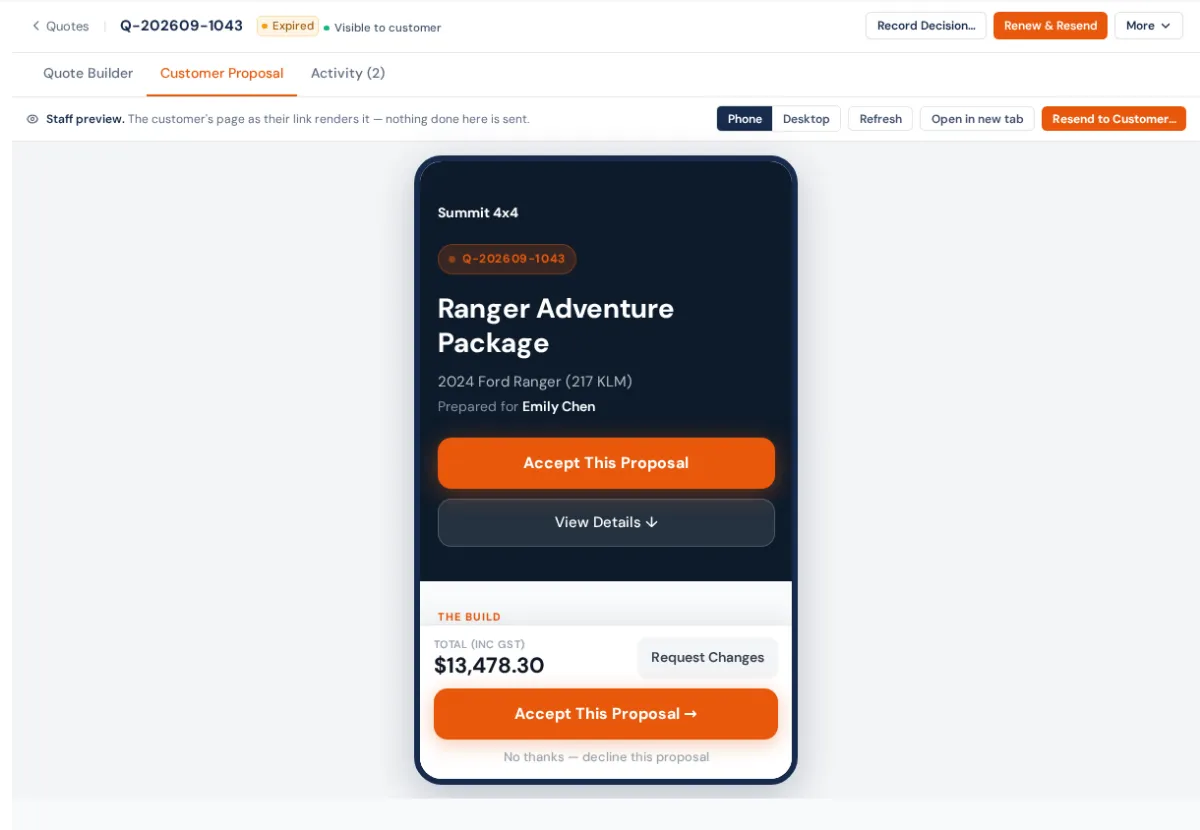
On it the customer can:
- tick optional upgrades and pick from choices; the total updates as they go;
- ask a question under Have a question? It lands in the quote's Customer Comments;
- press Request Changes and say what they'd like changed;
- decline it, with an optional reason;
- press Accept This Proposal, then Continue →, tick I agree to the terms and conditions, type their name and press Confirm & Accept Proposal. That is their electronic signature, timestamped on the quote.
If the quote asks for a deposit and Quote deposits is on in Integrations → Stripe, they go straight to pay it by card.
What happens on your side
- The quote moves to Accepted, Declined or Changes Requested, and the quote's owner gets a bell (with nobody assigned, owners and admins do).
- An accepted quote turns into an order, job or invoice by itself. See Which way a sale goes.
- Optional upgrades they left unticked go to Deferred work.
Accepted (or declined) by phone or in person
On a sent quote press Record Decision…. Choose Accepted or Declined, how they told you (Phone call, In person, Email reply or SMS / text reply), add notes and press Record Acceptance or Record Decline. The button only shows once the quote has been sent; if you never sent it, use Send to Customer › Record as sent without messaging first.
Changes requested
Make the changes and press Send Revised Quote. The customer's link shows the latest version.
Changing a quote after it's gone out
⋯ › Revise Quote… puts the quote back to draft, switches the customer's link off and voids any acceptance. Give a reason; it's kept on the timeline. Send it again when you're done. Revision History compares each sent version line by line.
If something's not right
- "This proposal link is invalid or has expired." The quote was revised, or the link was replaced. Send it again.
- They accepted but nothing happened. See "If something's not right" in Which way a sale goes.