The Orders desk
Every open order from every channel — staff, Shopify, dealer portal, franchises and fitting jobs — on one screen that says what to do next, whose move it is and when it is due.
Where it is
- Sales → Orders → Desk — The working list, opens on Needs us
- Orders → All orders — Every sales order, open or closed
- New order — Opens New Sales Order
- Reporting → Orders & fulfilment — How fast orders are accepted and sent
Settings for this
- Settings → Orders — Response targets, who’s on duty, alerts and daily emails, automation, customer updates
- Settings → Shipping & freight — Carrier cut-off: the deadline for sending
- Settings → Workshop → Trading hours — The hours the desk’s clocks count
- Settings → Modules & flow — What an accepted quote becomes
Who this is for: everyone who handles orders. You need one of: view sales orders, view invoices or view purchasing.
Where it is
Sidebar Sell › Sales › Orders (open the desk). Two tabs: Desk (the working list) and All orders (the register of every sales order, open or closed, with status and stock filters). The old Inbound Orders, Backorders and sales order list pages now open here.
Where orders come from
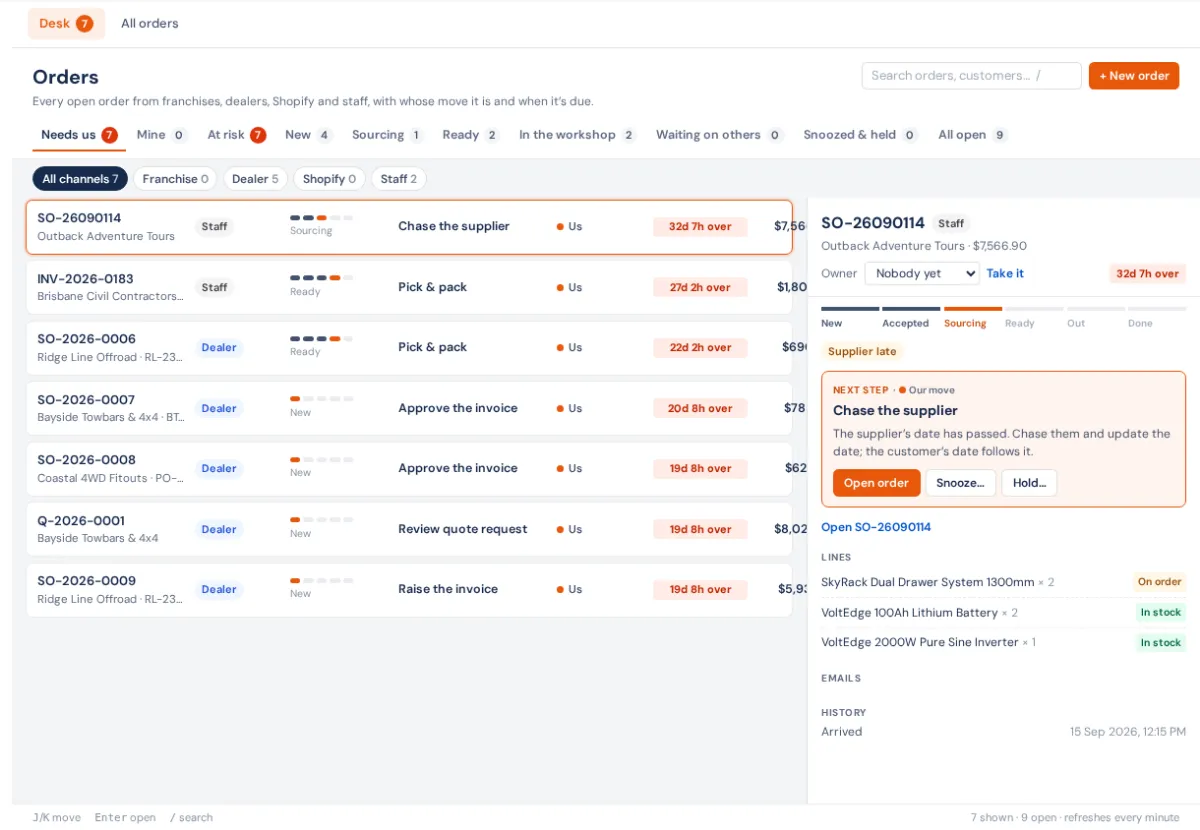
The channel chips filter by where it came from: All channels, Franchise, Dealer, Shopify and Staff. Staff covers accepted quotes, sales orders you enter, counter sales, invoices with goods, and workshop jobs waiting on parts or a fitting. A banner across the top shows franchise returns waiting to be received, and Shopify orders waiting to be approved (with Approve all).
The views
Needs us (the default: everything where the next move is ours), Mine, At risk (due within two hours or late), New, Sourcing, Ready, In the workshop, Waiting on others, Snoozed & held and All open.
Reading a row
Each order climbs New → Accepted → Sourcing → Ready → Out, then drops off when it's done. Each row shows its stage dots, the next step, whose move it is (Us, Customer, Supplier or Workshop) and a clock. Supplier rows show the supplier's ETA, workshop rows the booking ("Booked Mon 26 Oct", "On the hoist"), and a job waiting to be collected To collect. Flags such as Short, nothing ordered, Supplier late, Email bounced, Part sent or Parts late for booking say what's wrong.
On our-move rows the clock shows the time left to the next deadline ("3h 20m left"): green, amber in the last two hours, red once it's over ("2h over"). Deadlines are set in trading hours, skipping closures and public holidays. Targets are 2 trading hours to accept a new order, 1 trading day to sort its stock, and the courier cut-off to send it, unless you've changed them in Settings → Orders.
Working an order
- Stay on Needs us and click the top row (most urgent first).
- The panel on the right shows its Next step as a button: Accept, Approve, Make the order, Pick it, Send it, Open quote and so on. Press it.
- Press Take it to put your name on it; bells about it come to you.
- Waiting on something? Snooze… with a time and a reason. Something stopping it (credit hold, address problem…)? Hold… stops its clock until someone presses Release hold.
- Goods already left another way? Goods already gone… records it, and asks whether to take the stock now.
Press + New order for a sales order typed in by hand. / searches, J/K move, Enter opens the order's own page.
The full walk-through, channel by channel, is the Orders course: start at How orders work now.
If something's not right
- An order isn't on the desk. Check All open and the channel chip; a held or snoozed one is under Snoozed & held. A finished order drops off.
- Nobody's hearing about new orders. Set who's on duty in Settings → Orders.
- "Couldn't turn into an order automatically." Open the quote and press its main button; see Which way a sale goes.