1. How orders work now: the Orders desk
Every order, from every channel, lands on one screen that tells you what to do next, whose move it is and when it is due. Start here.
Where it is
- Sales → Orders — The Orders desk
- Orders → All orders — Every sales order, open or closed
Settings for this
- Settings → Orders — Targets, who’s on duty, alerts, automation, customer updates
Who this is for: everyone who touches orders: sales, accounts, the warehouse, workshop and managers.
Orders used to arrive in four places: the Inbound Orders list, the Dealer Portal's orders tab, the Shopify page and the Backorders list. Now they all land on the Orders desk, so you don't have to check those screens for new work. (The old addresses open the desk.)
Where to find it
Sidebar Sell › Sales › Orders (open the desk). The tabs across the top are Desk (the working list) and All orders (every sales order, open or closed, as a register). + New order makes a sales order by hand.
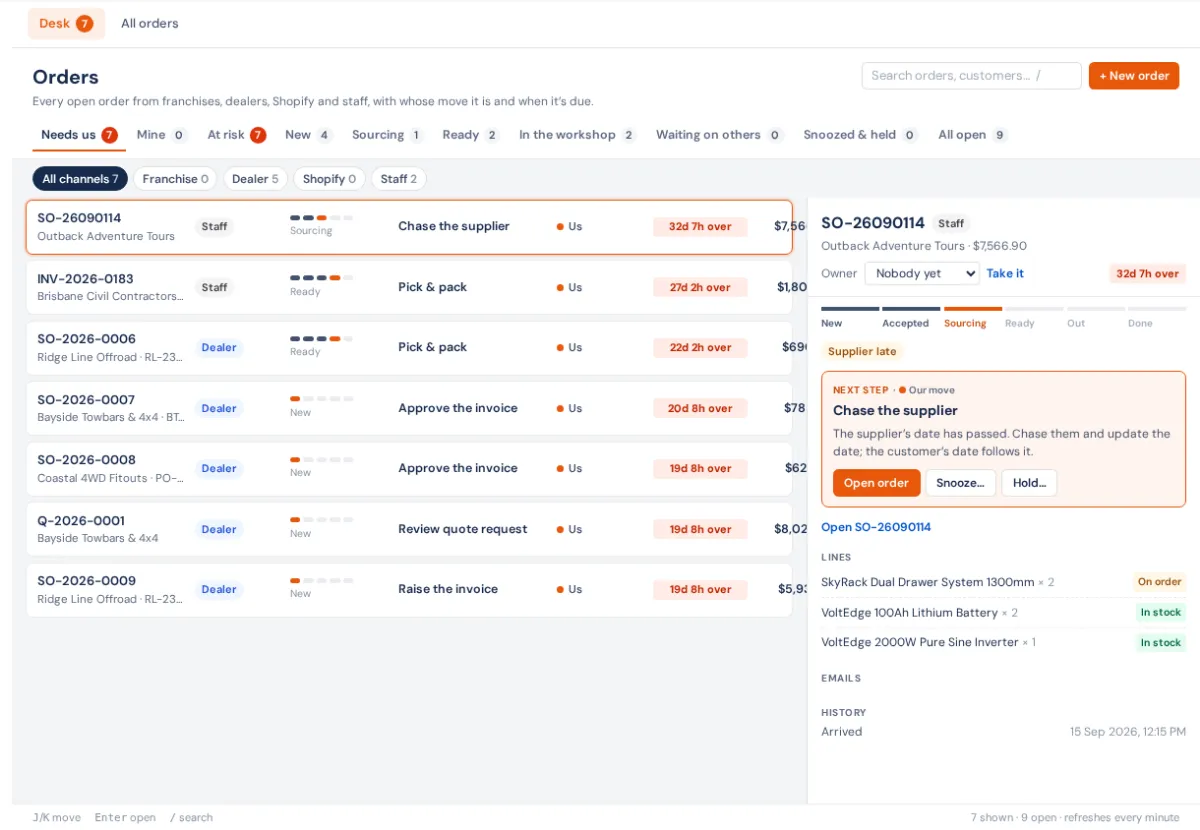
The views are Needs us, Mine, At risk, New, Sourcing, Ready, In the workshop, Waiting on others, Snoozed & held and All open. The channel chips are All channels, Franchise, Dealer, Shopify and Staff.
The ways an order comes in
| Way in (chip) | What it is | Lesson |
|---|---|---|
| Staff | A quote the customer accepted, a sales order you entered, a counter sale or an invoice with goods | 2 |
| Shopify | A paid order from your online store | 4 |
| Dealer | An order or quote request from the dealer portal | 5 |
| Franchise | A purchase order a franchise sent to head office | 6 and 7 |
| Staff (workshop) | A job waiting for parts, or a fitting order. These sit under the Staff chip and the In the workshop view | 8 |
Every order climbs the same ladder
New → Accepted → Sourcing → Ready → Out → Done. The dots on each row show where it is.
- New: it has arrived and someone has to accept or approve it.
- Accepted: we have said yes. It's waiting for a deposit or a payment, or the order is made and its invoice isn't raised yet.
- Sourcing: some of the stock isn't here yet.
- Ready: everything is here; pick it and send it.
- Out: some or all of it has gone.
- Done: gone and finished. It drops off the desk.
Whose move is it?
Every row says whose move it is: Us (orange), Customer (waiting for payment, collection or a reply), Supplier (stock on order) or Workshop (booked in or on the hoist). Only Us shows in "Needs us", and only Us has a countdown. The others show where things stand instead: the supplier's ETA (or an amber No ETA), the booking ("Booked Mon 26 Oct", "On the hoist", "Due back …") or To collect.
The clock
Each step has a target, worked out in trading hours (your trading hours, skipping closures and public holidays). The clock then shows the time left, such as "3h 20m left" or "2h over":
- Accept a new order: 2 trading hours.
- Sort its stock: 1 trading day.
- Send it: by the courier cutoff (3:00 pm unless you've changed it).
A clock goes amber in the last two hours and red once it's overdue. You can change the targets in Settings → Orders (lesson 10).
Working an order
- Open Orders and stay on Needs us.
- Click the top row. It's the most urgent: overdue first, then soonest due.
- Read the Next step card in the panel on the right and press its button. Accept, Approve, Make the order, Pick it and Send it all do the step for you.
- Press Take it if you're the one handling it. Your name goes on it and the bells about it come to you.
- Waiting on something outside BuildTrack? Use Snooze… (pick a time and a reason). The order comes back at that time, or sooner if it moves on. Use Hold… for a reason that stops the clock, such as credit hold or an address problem.
- Goods already left another way (handed over at the counter, sent before BuildTrack knew)? Use Goods already gone…, say what happened, and choose whether to take the stock now or leave it.
Tip: press / to search, J/K to move, Enter to open the order's own page and Esc to close the panel.
Who hears about what
- A new Shopify or dealer order rings whoever is on duty for that channel. If nobody is, owners and admins hear.
- Three-quarters of the way to a deadline, the order's owner gets a bell.
- Overdue rings the owner and the managers.
- Stock is in: when stock arrives for an order that was waiting on it, its owner (or whoever is on duty) gets a bell.
- Bells clear themselves once the order moves on, so a bell you still have is something still to do.
- Two daily emails: at 7:30 am, what's yours; at 4:30 pm, managers get what's still late.
Where it ends
An order leaves the desk when its goods have gone and nothing more is needed from us. A paid, dispatched order, a received franchise order and a collected job all drop off by themselves.
Lesson 1 of 10 in Orders, start to finish. Next: 2. Staff orders: quote to paid.