Sales orders: confirm, allocate, fulfil
A sales order is the confirmed order: it holds stock, takes the deposit, links to any job, and raises the invoice. Here is everything on the page.
Where it is
- Orders → All orders — Every sales order, with status and stock filters
- Sales → Orders — The desk, with + New order
- New order — Opens New Sales Order
Settings for this
- Settings → Orders — Hold the stock and Draft POs for what’s short on new orders
- Settings → Modules & flow — Whether accepted quotes become sales orders; Workshop on for Create Job
- Settings → Roles — View, create and edit sales orders
Who this is for: sales staff, coordinators and the warehouse.
Making one
- From a quote: an accepted quote becomes a sales order by itself (see Which way a sale goes), or press Create Sales Order on it.
- By hand: + New order on the Orders desk, or New order. In New Sales Order choose From Accepted Quote (pick the quote) or Manual Order (customer or company, an optional Target Install Date and notes), then press Create Sales Order.
A manual order starts as Draft: press Confirm Order. Add lines with Add Line Item (type Part, Labour, Optional, Excluded or Internal Note), Paste multiple lines or freight.
The page
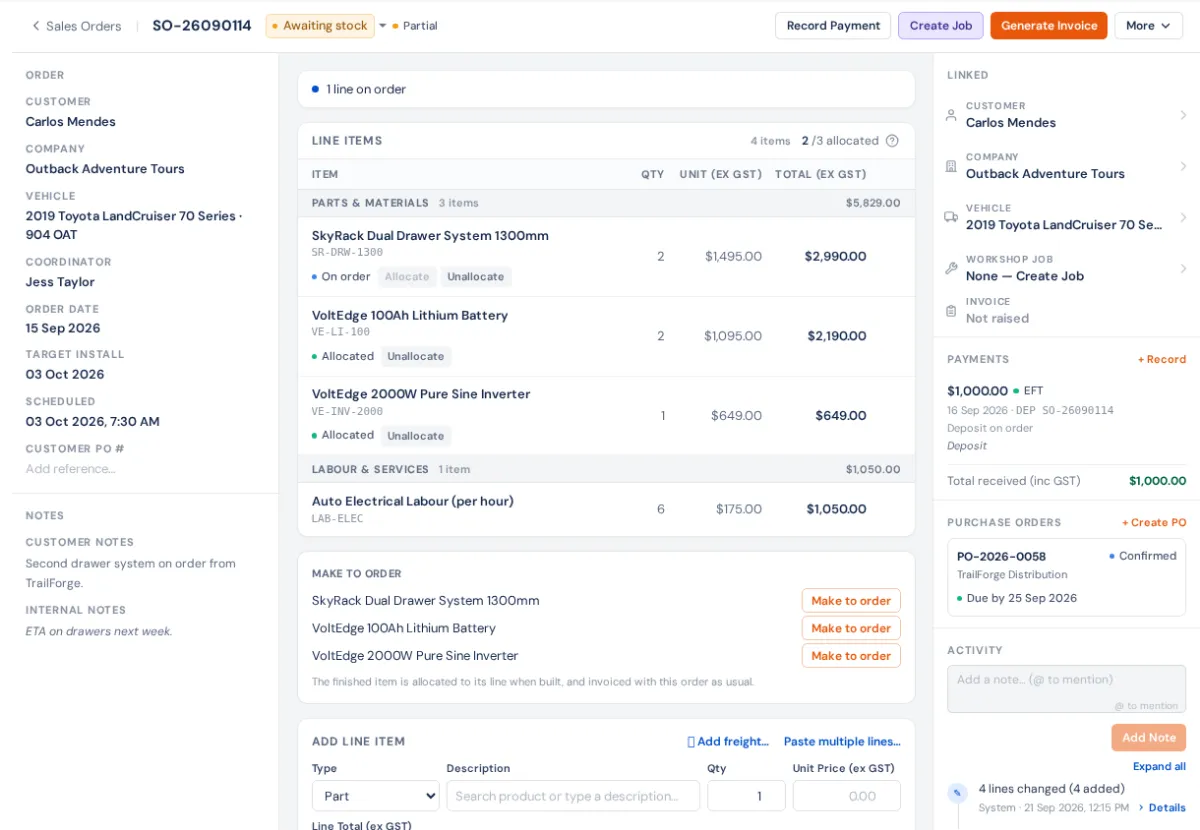
- Readiness strip (top): what the order is waiting for, each with its button: Deposit outstanding → Record payment; n lines not yet allocated → Allocate available or Order missing; external services → Book; lines on order → the expected date; then Stock allocated — ready to book into the workshop → Create job (only while the Workshop module is on), Work complete — ready to invoice, or the balance owing with Open invoice.
- Line Items: grouped into Parts & Materials, Labour & Services, Optional Items and Excluded Items, each stock line with its allocation (Allocate, Unallocate, Flag Order). See Stock allocation.
- Money card under the lines: deposit, received, outstanding. See Deposits and payments.
- Right rail: the order's details (customer, vehicle, reference, coordinator, dates, notes), Linked records (quote, customer, company, vehicle, Workshop Job, invoices), Payments and Purchase Orders (+ Create PO).
The header
- Main button: Confirm Order (draft), then Generate Invoice, then View Invoice.
- Beside it: Record Payment, and Create Job / View Job while the Workshop module is on.
- The status pill is a menu: Confirm Order, Place on Hold / Resume Order and Cancel Order (which releases the stock it holds).
- ⋯ menu: Raise Deposit Invoice, Payment Schedule, Email Sales Order, Pick List, Download PDF, Print, Print Packing Slip (drop ship) (dealer drop-ship orders: no prices), Print Cover Sheet (the job folder cover), Print Part Labels, Mark Workshop Ready, Re-sync lines from Quote (keeps allocations and PO links) and Delete Sales Order.
Changing lines
You can add, edit and delete lines until the order is invoiced. A change reaches a draft invoice by itself; if the invoice is already issued you'll be told to amend the invoice to match.
Invoicing
Generate Invoice makes the invoice from the order's lines; any deposit invoice comes off it as its own line. Approving the invoice issues it. Stock still doesn't move until the goods are dispatched, collected or the job is handed over. See Dispatch.
Linked jobs
Create Job opens Create Workshop Job from the order: the job takes the order's parts and labour. See Accessories & Build: sales order first, then the job.
If something's not right
- Generate Invoice is greyed out. Add line items first, or the order is closed or cancelled.
- I can't edit the lines. The order is invoiced, closed, cancelled or a franchise order; amend the invoice instead.
- Create Job isn't there (in the header or the readiness strip). The Workshop module is off in Settings → Modules & flow.