Showroom POS (counter sales)
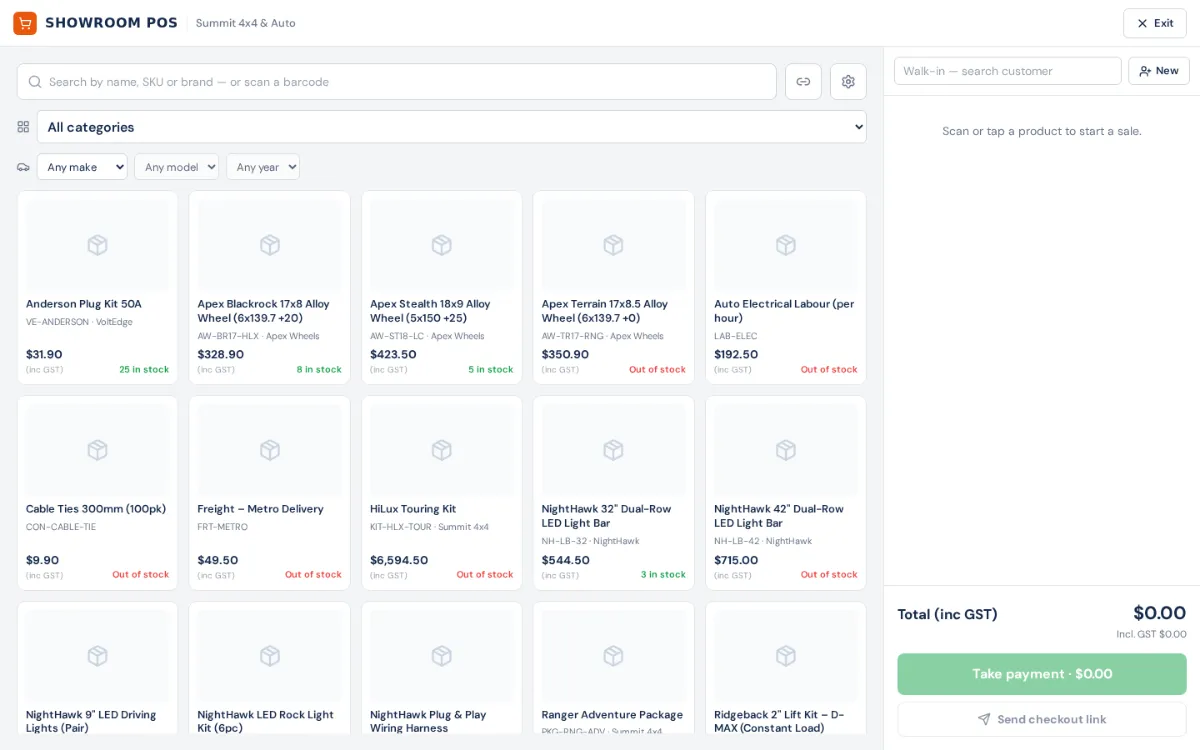
A full-screen counter register: scan or tap products into a cart, take EFTPOS, cash, EFT or Stripe card, and it makes a paid invoice and takes the stock in one step.
Where it is
- Showroom POS — The cart button at the top of the screen
- Inventory → Dispatch — Where shipped or not-in-stock POS sales wait
Settings for this
- Settings → Billing & plan — The Showroom POS add-on (included on Enterprise)
- Integrations → Stripe — Showroom POS card payments, and Stripe card readers
- Settings → Shipping & freight — Ship-from address and freight margin for Ship to customer
- Integrations → Freight carriers — Carriers that price delivery
- Settings → Roles — Using the POS needs create sales orders or invoices; discounts need the invoice discount permission
Who this is for: counter and showroom staff.
Switching it on
The Showroom POS is included on Enterprise and is an add-on on Business: Settings → Billing & plan, Add-ons. Without it, the POS shows a lock screen.
Where it is
The cart button at the top of the screen (on a phone, Showroom POS in the menu), or open the POS. It's full screen; Exit takes you back.
Making a sale
- Add products: scan a barcode, search by name, SKU or brand, or tap a card. Filter by category or vehicle (make, model, year). Products with options (sizes, drops) share a card; tapping it asks which one.
- The customer: search under Walk-in — search customer, or New to add one. A business customer gets their company's price (marked Trade). Leave it blank for a walk-in.
- Discounts (if your role allows): Discount on a line for a % off, or Discount the sale for a % or $ off with a reason.
- Press Take payment. Choose EFTPOS, Cash or EFT (and Card — Stripe if you take cards through Stripe). For cash, type what they handed you and it shows the change; an all-cash sale is rounded to 5c. Split across payments takes part on each.
- Confirm with Payment received — complete sale once the terminal says approved.
Sale complete shows the invoice, with a Pick list and New sale. The invoice is paid, the goods are recorded as collected and the stock leaves, all in that one step.
Selling what isn't on the shelf
You can sell an item with no stock. The cart says so before you take payment. The customer pays now; the invoice stays on the Dispatch board until the goods arrive and are handed over or sent.
Shipping instead of handing over
Ship to customer — price delivery prices a courier to their address (Get delivery prices), lets you Text the quote, and Add to sale puts the freight on the invoice. A shipped sale goes to the Dispatch board to pick, pack and book.
Sending the cart to the customer
Send checkout link texts or emails the cart so the customer confirms and pays themselves. See POS checkout links.
Showroom setup
The gear button: Filters (Category → Sub-category, Vehicle (Make / Model / Year), One card per product with options) and Tabs across the catalogue (a category, a brand, top sellers, or hand-picked products).
If something's not right
- Take payment is greyed out. The cart is empty, or it changed after you priced delivery: re-price it.
- "Paid, but the handover was not recorded." Don't take payment again. Open the invoice and dispatch it from there.
- "Invoice … from an earlier attempt was left unpaid." A card attempt failed after the invoice was made. Void that invoice in Invoices.
- No Card — Stripe option. Switch on Showroom POS in Integrations → Stripe. Without a card reader it shows a QR code for the customer to pay on their phone.