Create, approve and send an invoice
Raise an invoice from a sales order, quote, workshop job or customer, or start a blank one; approve it to issue it, then send it.
Where it is
- Sales → Invoices — Every invoice, with status tabs and the money owed at the top.
- New invoice — Opens the New Invoice form straight away.
Settings for this
- Settings → Quotes & invoices — Number prefix, default payment terms, T&Cs, bank details, surcharge, amend password, reminders.
- Settings → Branding — Logo and brand colour on the invoice, its email and the PDF.
- Settings → Modules & flow — When a quote is accepted: sales order, invoice, or by quote type.
- Settings → Roles — Create, Approve and Delete invoices permissions.
Where an invoice comes from
- From a sales order — open the order and press Generate Invoice (the main button once the order is confirmed). Lines, vehicle, customer PO and any deposit carry across. Need a deposit first? Use Raise Deposit Invoice in the order's More menu, or Payment Schedule to bill a long build in stages. See Sales orders.
- From a quote — on an accepted quote, press Create Invoice. It's the main button when Settings → Modules & flow says an accepted quote becomes an Invoice; otherwise it sits beside the main button. See Quote to invoice.
- From a workshop job — on the job, Raise invoice bills the job's sales order, or the job's own parts and clocked labour when it has no order. View invoice opens one that already exists. See Run a job.
- From a customer — on a contact or company, Create → Invoice.
- Blank — Sales → Invoices → + New Invoice. Pick the type, the customer and/or company, a due date (or leave it blank to use the payment terms) and notes, then Create Invoice.
- At the counter — the Showroom POS raises the invoice for you. See Showroom POS.
Invoice types: Final, Deposit, Progress, Adjustment and Credit / Refund Note. A sales order can only have one live invoice of each type.
Terms and due date are filled in for you. However the invoice is made, it starts with the company's Payment Terms (on the company's page in CRM), or the company's dealer payment terms, or else your Default Payment Terms from Settings → Quotes & invoices, and the Due Date is worked out from them (Net 30 = 30 days after the invoice date, EOM + 30 = 30 days after the end of the month). A due date you set yourself is kept. A counter sale is due the same day, and a deposit invoice is due on receipt.
Invoice numbers follow the Invoice Number Prefix in Settings → Quotes & invoices: INV-2026-0001, INV-2026-0002 and so on, starting again at 0001 each year.
Build it while it's a draft
- Add lines under Add Line: pick the Type (Part, Labour, Fee, Other, Adjustment), search a product or type a description, then Qty, Unit (ex GST) and Disc %. Paste multiple lines… takes a block from a spreadsheet; 🚚 Add freight… prices freight and adds it as a line.
- Click any line to edit it (price, discount, notes, GST applies to this line).
- Check the Invoice panel on the left: Invoice Date, Terms (filled in from the company or your default; pick COD, Net 7, Net 14, Net 30 or EOM + 30 to change it, which resets the Due Date), Due Date and Customer PO #.
- Optional: a Header Discount, a Deposit due now amount, the Customer Message and T&Cs tabs, Warranty items, Attachments, and Internal Notes (staff only, never on the PDF).
- Payment Details (left) shows the bank details printed on the invoice. Load from Settings copies yours from Settings → Quotes & invoices.
Approve, then send
- Approve Invoice issues it for payment. If Xero or QuickBooks is connected, it's sent there too. Approving never moves stock: stock leaves when you dispatch.
- Not allowed to approve? More → Submit for Approval (or Send for approval on the strip) puts it in Pending for someone else. Everyone with Approve invoices gets a notification and finds it in Approvals, where they Approve it or Send back to draft with a reason (see Approvals). Whoever submitted it can't approve it, unless they're an owner or admin.
- Send Invoice emails the branded PDF with a Pay invoice online button when card payments are on. It goes to the company's accounts email if one is set, otherwise to the contact. Emailing an approved invoice marks it Sent.
- More → Download PDF, Print and Preview as Customer (opens the customer's pay page). The print preview leaves the Terms & Warranty pages off unless you tick Include Terms & Warranty; an emailed PDF always carries them.
The strip above the lines always says what's next (approve, send, collect payment, dispatch) with the button for it.
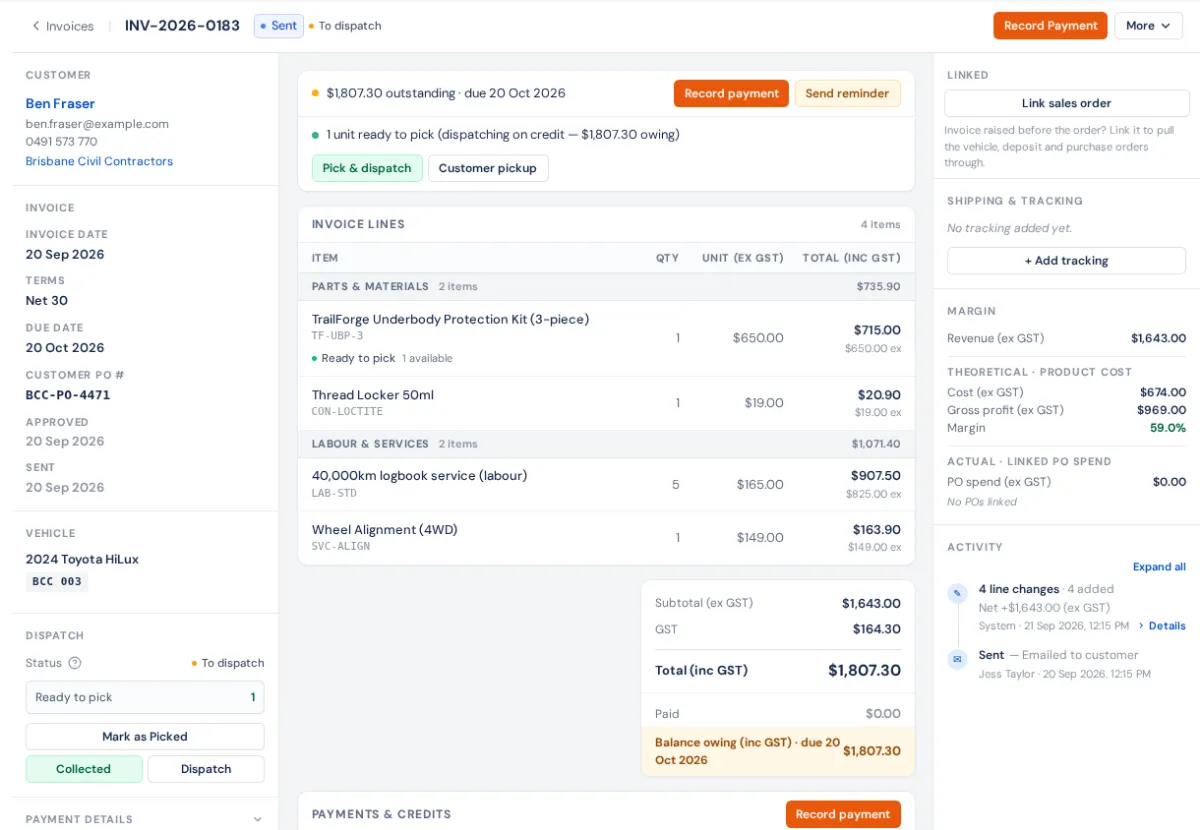
Statuses
Draft → Pending → Approved → Sent → Part Paid → Paid, plus Overdue (past the due date with money owing), Voided and Cancelled. The list's tabs match these. The cards at the top show receivables, overdue, awaiting approval, part paid and cash collected this month.
Who can do it
Create invoices, Approve invoices and Delete invoices are separate permissions in Settings → Roles. Cost and margin on the invoice only show to roles with See cost of goods and See profit & margin %.
If something's not right
- Generate Invoice is greyed out — the order has no lines, or it's cancelled or closed. A draft order shows Confirm Order first.
- "A final invoice already exists for this sales order" — open it from the order's View Invoice; void it first if you really need a new one.
- Can't approve — you need Approve invoices, and you can't approve one you submitted yourself.
- To change an issued invoice, see Change, cancel or void an invoice.