Run a job from booking to invoice
Six stages — Draft → Booked → In progress → Ready → Delivered → Closed — moved with one button. Holds are labels, not stages. This is the map; each step has its own guide.
Where it is
Settings for this
- Settings → Workshop → Board labels — Hold reasons and card labels
- Settings → Workshop → Checklists — Check-in, QC and Delivery lists
- Settings → Roles — Workshop permissions: QC sign-off, mark delivered, delete jobs
The stages
| Status | What it means | How it gets there |
|---|---|---|
| Draft | Made, not booked | + New Job, or made for you from a quote or order |
| Booked | Has a date | Set Scheduled Start, or drag it onto the calendar |
| In progress | Work has started | Start work |
| Ready | Finished and checked, waiting for the customer | Mark ready |
| Delivered | The customer has the vehicle | Hand over |
| Closed | Finished and filed | Close job |
| Cancelled | Not going ahead | Cancel job (from Draft, Booked or In progress) |
The steps, in order
- Create and book it. Create and book a workshop job.
- Check the car in when it arrives. Check-in.
- Start work (the orange button at the top). Technicians clock onto lines on the Work tab. Labour clocking.
- Parts are added, ordered, picked and fitted on the Parts tab. Parts on a job.
- Hold… when work stops. Holds. Work sent out goes through External services.
- QC, then the delivery checks, on QC & Handover. QC and handover.
- Mark ready, then Notify customer — ready. Tell the customer.
- Raise invoice, Hand over, Close job. Invoice, hand over and close.
The job page
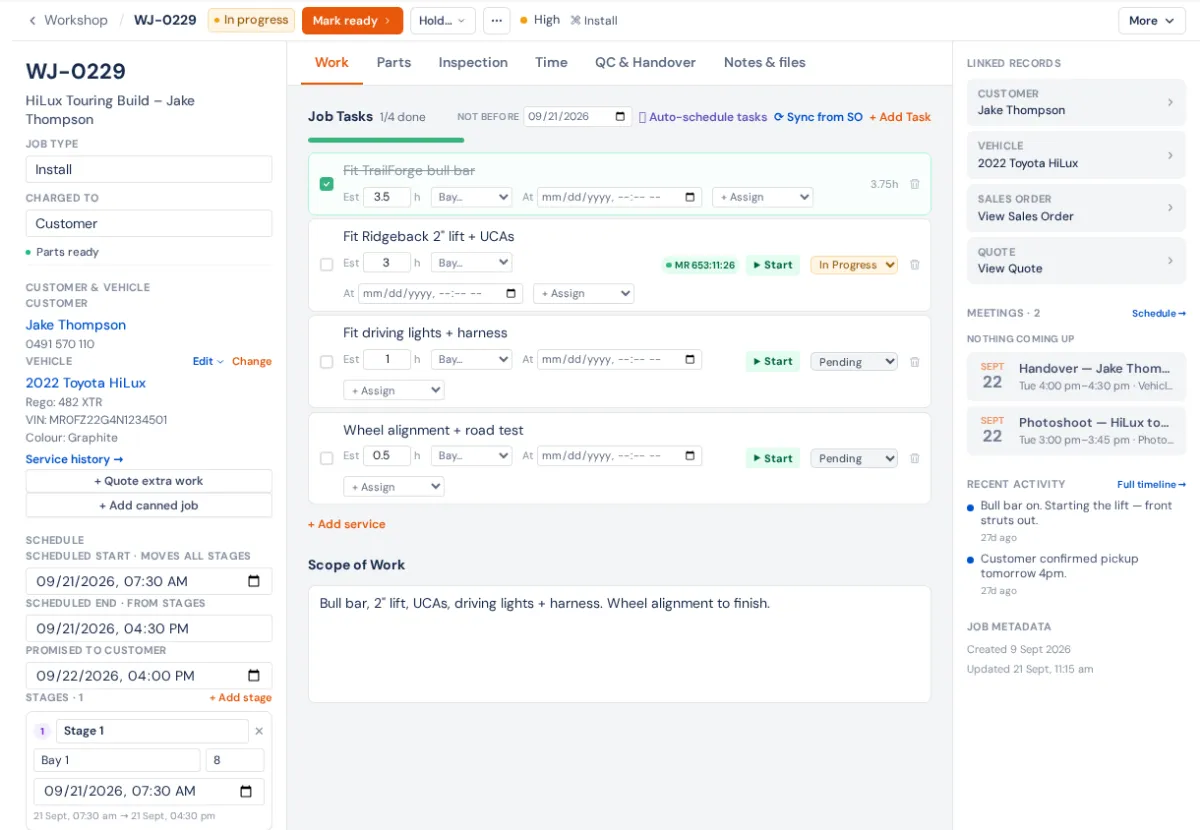
- Tabs: Work, Parts, Inspection, Time, QC & Handover and Notes & files (on a phone, also Details).
- Notes & files → Files: drawings, instructions and documents for the whole job or one part. Share to portal copies one for the customer to open in their portal, and Shared with customer below lists what they can see (Share documents with a customer).
- Left panel: customer and vehicle, + Quote extra work, + Add canned job, Schedule, Team, Hours & Costing, and a folded Details section (Key Tag, Comeback, Charged to).
- Right panel: Linked Records (quote, sales order, invoice, inspections), a Courtesy car card when one is out, and Recent Activity.
- More (on a phone, ⋯): Digital inspection, Pick list, Print job sheet, Sell take-off, Raise warranty claim (only when the vehicle carries a warranty) and Delete job.
Other moves
The small ⋯ beside the status button (Other moves) holds Back to … one step, Move to booked, Cancel job, Reopen job (a closed job goes back to In progress) and Reinstate as draft (for a cancelled job). Use Cancel job rather than Delete job for anything that was ever real, so its history stays.
Comebacks
A comeback is the same car back for the same fault. On the new job, open Details in the left panel and paste the original job number under Comeback. The job gets a red Comeback pill and View original job, the Comeback label, and Charged to switches to Rework. Change Charged to if a warranty or the customer is paying. The Comeback rate is on Reporting → Workshop.
Who can do it
Settings → Roles, Workshop group: Perform QC sign-off, Mark jobs delivered, Delete workshop jobs, Manage technicians' time and Assign technicians & bays each gate their part. Costs and margins need the Financials permissions.
The linked sales order's status follows the job automatically.