Scheduling and the workshop board
The Jobs page shows every job three ways: a board by status, a calendar by bay or technician, and a list. Plan who does what and when, with capacity, absences and trading hours in view.
Where it is
Settings for this
- Settings → Workshop → Bays — Bays and hoists, Boxed in by, or switch bays off
- Settings → Workshop → Technicians — Who can be booked, their daily and weekly hours, absences
- Settings → Workshop → Trading Hours — Open hours, closures and public holidays
- Settings → Workshop → Work Centres — Optional: plan capacity by department
- Settings → Workshop → Labour & pace — Standard day and the amber / red pace alerts
Board, Calendar or List
On Workshop → Jobs, the switch at the top right reads Board, Calendar and List.
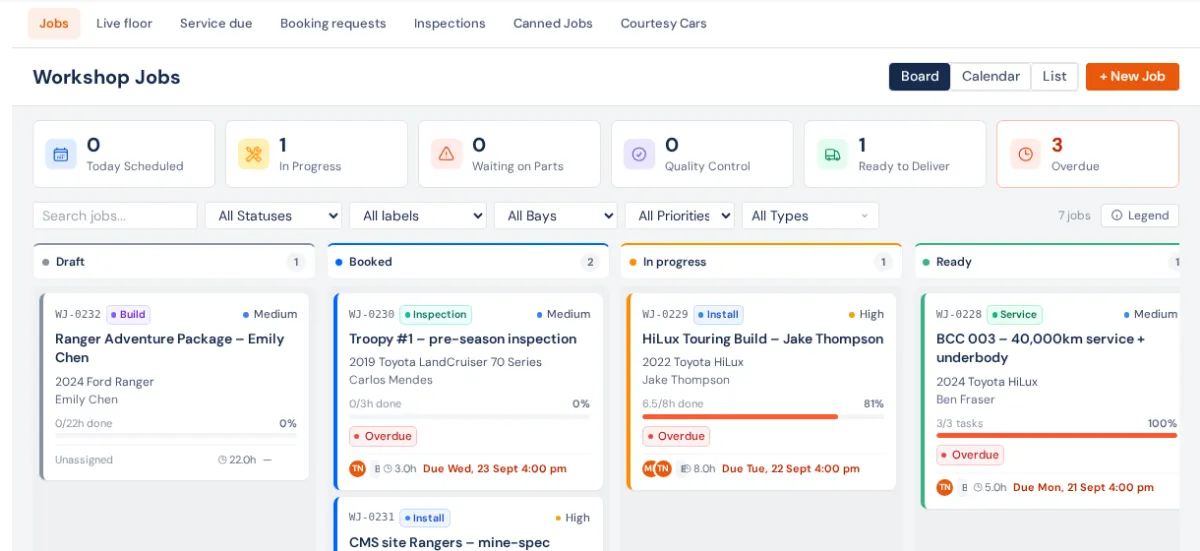
- Board: a column per status (Draft, Booked, In progress, Ready), soonest-due first, with Delivered, Closed and Cancelled folded into Done. Drag a card one step to move the job.
- Calendar: bookings by bay or technician (below).
- List: one row per job; click a heading to sort.
The cards across the top count Today Scheduled, In Progress, Waiting on Parts, Quality Control, Ready to Deliver and Overdue. Filter by status, bay, priority, job type and label, or search.
On a phone, Jobs is a list grouped into Overdue, Today, Tomorrow, This week, Later and Not yet scheduled.
The calendar
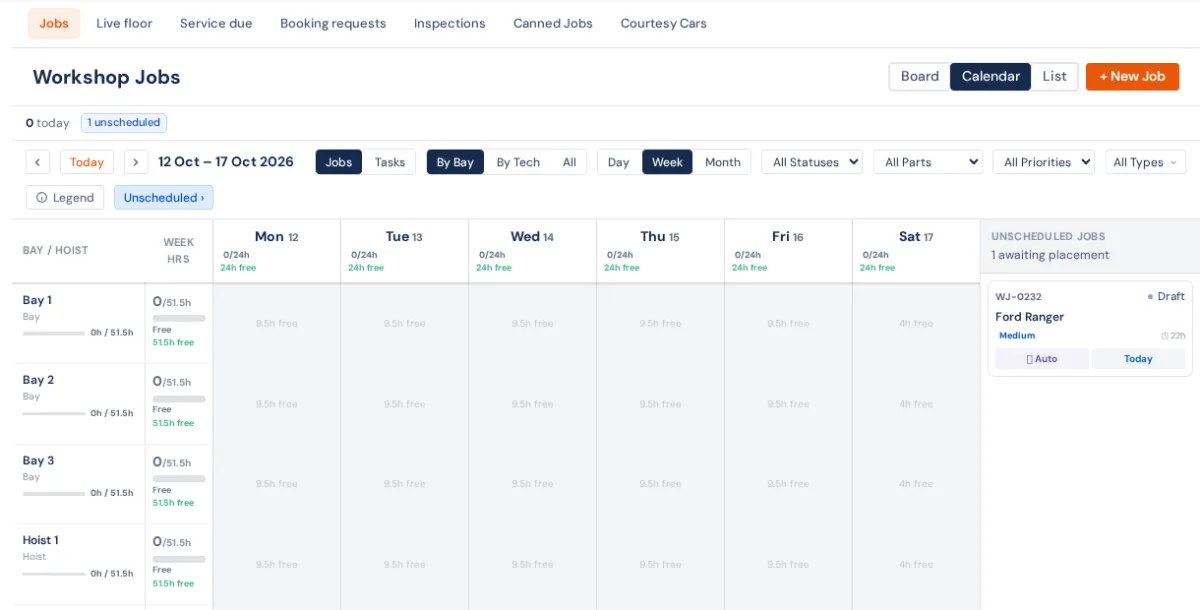
- Press Calendar. Day, Week and Month set the range; the arrows and Today move through dates.
- By Bay, By Tech and All set the rows (By Centre too, if you use work centres). Jobs and Tasks switch between booking whole jobs and single tasks.
- Open Unscheduled and drag a job onto a row to book it. Drag a booked job to another day or row to move it: onto a bay's row moves it to that bay, onto a technician's row to that person.
- Cell colours show how full each bay or person is (the legend explains them). A Parts chip warns when parts aren't in yet.
- External services sit in their own Offsite band. See External services.
Moving the start time asks about the booking confirmation.
Smart Schedule
On the job, under Schedule, set Earliest and press ✨ Smart Schedule. ✨ Suggested slots lists the best date, bay and technician with the reasons and any warnings. Apply (best) takes the top one. It respects technician hours and absences, trading hours, closures, and days the vehicle is away at a contractor.
Split a job across bays and days
On the job, ⇄ Split across bays / days under Schedule. Each stage gets its own bay, start and hours (suspension on the hoist Monday, fit-out in the fitting bay Tuesday) and shows as its own chip on the calendar. Drag one stage to move only that stage. Scheduled Start then moves all stages, and Scheduled End comes from the last stage.
Hoists that box each other in
In Settings → Workshop → Bays, edit a bay and set Boxed in by to the bay in front of it. The calendar flags a booking that would need to get in or out while that bay is busy. Set it on both bays if neither can pass the other.
Auto-schedule a big job's tasks
On the Work tab, ✨ Auto-schedule tasks plans each task into a bay, technician and time slot inside the job's booking. Set Not before if needed and apply the ✨ Proposed task schedule.
Pace: falling behind
A job that's behind its schedule shows an amber or red pace pill. It counts earned hours: a finished line earns its whole estimate however fast it was done. The thresholds and standard day are in Settings → Workshop → Labour & pace.
If something's not right
- A card jumps back when dragged. A job moves one step at a time; BuildTrack says why it couldn't move.
- Someone is missing from By Tech. Only enabled technicians show; see Workshop settings.
- A person shows as unavailable. They have an absence, are past their daily or weekly hours, or the day is a closure.