Quote and invoice settings: numbers, terms, bank details, look
Every setting that changes your quotes and invoices, and where it lives: Settings → Quotes & invoices, Branding, Business details, plus the ones outside Settings.
Where it is
- Settings → Quotes & invoices — Numbering, terms, T&Cs, bank details, surcharge, amend password, reminders, statements, pricing floor, quote approval.
- Settings → Branding — Logo and brand colour.
- Settings → Business details — Name, ABN, address, phone and email printed on documents; tax rate.
Settings for this
- Settings → Quotes & invoices — The main page for document defaults.
- Settings → Branding — Company logo (PNG/JPG, under 2 MB) and brand colour.
- Settings → Business details — Identity, contact, address, timezone, Default Tax Rate (%).
- Settings → Modules & flow — What an accepted quote becomes.
- Settings → Orders — Automatic quote conversion and customer order emails.
- Integrations → Stripe — Pay now buttons on invoices and quote deposits.
- Settings → Customer portal — Whether customers see their invoices and quotes in the portal.
- Settings → Your domain — Your own web address on pay, quote and checkout links.
- Settings → Roles — Who can create, approve, delete invoices, take payments, give discounts, see costs.
Every page saves with Save changes at the bottom. You need permission to manage the business to change them; others see them read-only.
Settings → Quotes & invoices
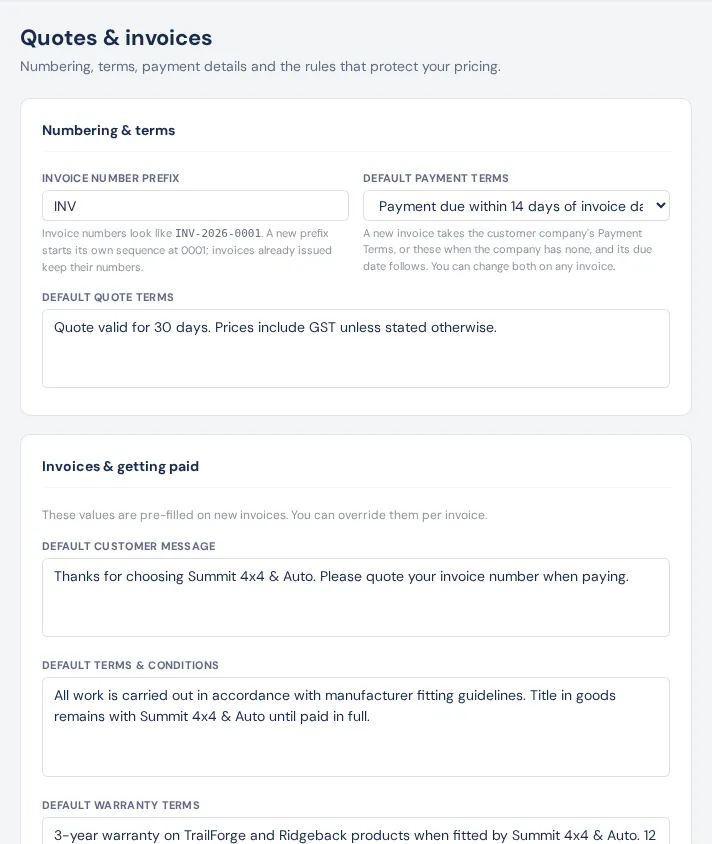
Numbering & terms
- Invoice Number Prefix — invoice numbers look like INV-2026-0001: your prefix, the year, then a number handed out in order by BuildTrack (it can't be typed or reset, and starts at 0001 each year). Type the prefix without a dash. A new prefix starts its own sequence at 0001; invoices already issued keep their numbers.
- Default Payment Terms — COD, Net 7, Net 14, Net 30 or EOM + 30. A new invoice for a company with its own Payment Terms uses those; any other invoice starts with these, and its due date follows. Change either on the invoice. None leaves the due date for you to set.
- Default Quote Terms — standard wording printed on quotes and sales orders. For the terms printed on invoices, use Default Terms & Conditions below.
Invoices & getting paid
- Default Customer Message — the friendly note on the invoice.
- Default Terms & Conditions — printed on the invoice's Terms pages.
- Default Warranty Terms — printed on the invoice's Warranty page.
- Bank / Payment Details — Bank Name, BSB, Account No, Account Name. Shown on invoices, reminders and the pay page.
- Online Card Payments — points you to Integrations → Stripe.
- Card Payment Surcharge — off by default; tick it and set Surcharge % of amount paid. See Payments.
- Amend Invoice Protection — an optional password needed before Amend Invoice on an issued invoice. Only its hash is stored. Remove password clears it.
- Automatic Payment Reminders — on/off and when. See Payment reminders.
- Monthly Account Statements — on/off and the day of the month. See Statements.
Pricing Guardrails — Minimum Gross Profit (%): quote and invoice lines under it are flagged. Lines below cost are always flagged.
Quote Approval — require sign-off before quotes over an amount (or breaching the pricing floor) can be sent. See Create and send a quote.
Bank details, T&Cs and warranty terms print from these settings unless the invoice has its own. On an invoice, Payment Details → Load from Settings copies the bank details and default message onto it (which also puts the bank details in the invoice email).
Settings → Branding
Open it. Company logo (PNG or JPG, max 2 MB) shows on invoices, quote and invoice emails, proposals and the customer portal. Brand colour colours proposals, document emails and the PDFs; Reset to default goes back to orange.
Settings → Business details
Open it. Legal and trading name, ABN, phone, email and address print in the document header. Default Tax Rate (%) sets the tax on new lines; the country (and currency) is fixed. See Tax and GST.
Settings → Currencies
Open it. For buying in other currencies only: live exchange rates, bank margin and fixed rates for supplier costs. It doesn't change the currency on your invoices.
On each invoice
- Invoice panel: Invoice Date, Terms (starts from the company's Payment Terms or your Default Payment Terms; picking COD, Net 7, Net 14, Net 30 or EOM + 30 resets the due date), Due Date, Customer PO #.
- Payment Details: this invoice's bank details and Reference.
- Customer Message and T&Cs tabs, Warranty terms and items, Header Discount, Deposit due now.
- Print preview: Include Terms & Warranty (off on screen; emailed PDFs always include them).
On each customer
Edit Company: Payment Terms (new invoices for the company start with them, and their due date follows), Credit Limit, Currency, Tax exempt (with certificate and expiry), On hold (block new orders). A dealer company's accounts email (where its invoices go) is set in the Dealer Portal's company settings.
Elsewhere
- Settings → Modules & flow → When a quote is accepted: By quote type, Sales order or Invoice.
- Settings → Orders → Turn accepted quotes into orders, and the customer emails Order confirmed, On backorder, On its way.
- Integrations → Stripe — where Pay now appears and the maximum online payment.
- Integrations → Xero / QuickBooks — accounting sync.
- Settings → Customer portal — show Invoices and Quotes to signed-in customers.
- Settings → Your domain — your own address on customer links.