Create a product
Click + New Item on Inventory → Products and fill in the sections: Basics, Pricing, Stock & purchasing, Fitting, Vehicle fitment and Description. Owners and admins create straight away; everyone else submits for approval.
Where it is
- Inventory → Products — Click + New Item
- Inventory → Products → Approvals — Where submitted products wait
Settings for this
- Settings → Currencies — The rate a foreign-currency supplier cost converts at
- Settings → Shipping & freight — How freight is priced from the packed size you enter
- Settings → Team → Roles — inventory.edit shows + New Item
- Dealer Portal → Setup → Features — "Order now when out of stock": the lead time per category when a product has none
- Dealer Portal → Setup → Support form — Default warranty length when a product has none
Steps
- Go to Inventory → Products and click + New Item. (Scanning an unknown barcode in the Scan Centre also offers to create one, with the barcode filled in.)
- Fill in the sections. The left side jumps between them, and Margin at the bottom shows the retail margin as you type. Only Name is required. Everything can be changed later.
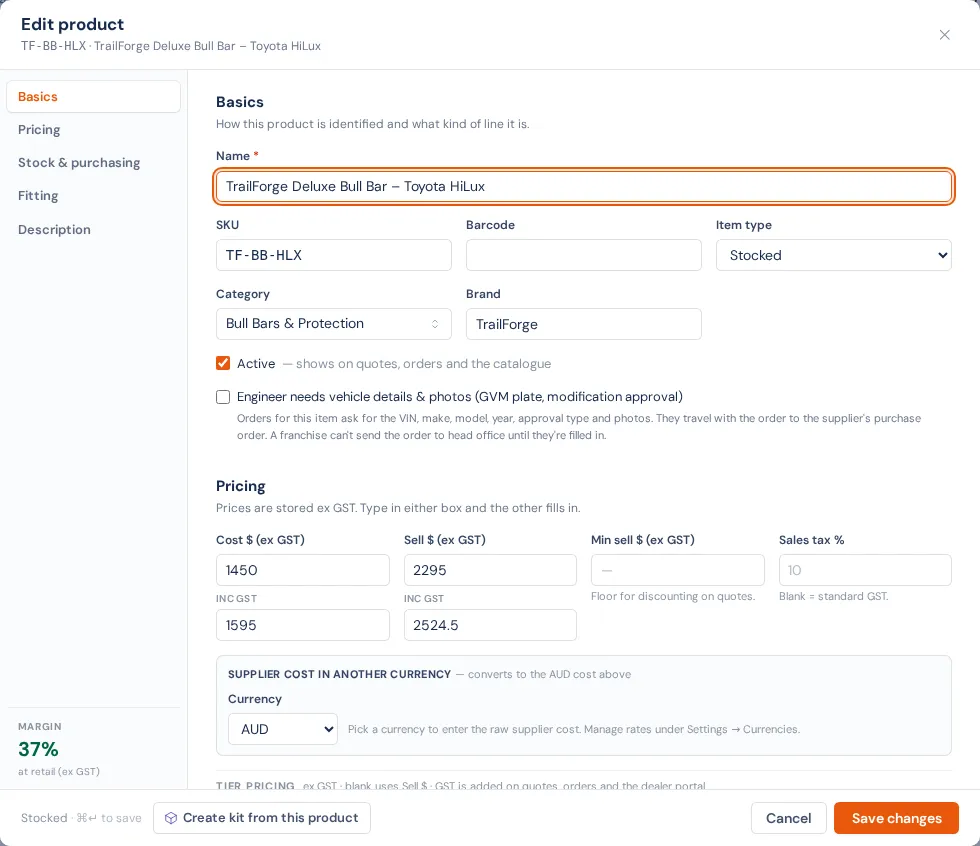
- Click Create product. If you're not an owner or admin the button says Submit for approval, and the product goes to Product approvals instead.
Press Ctrl+Enter (Cmd+Enter on a Mac) to save, or Esc to close. Closing with changes asks Discard your changes?
Basics
- Name, SKU and Barcode. Leave Barcode blank if there's none; you can still print a label with the SKU.
- Item type:
- Stocked: tracked per warehouse.
- Non-stocked: a part you sell but don't track.
- Consumable: expensed to jobs (tape, glue).
- Service (flat rate): a fixed-price service (inspection fee, call-out).
- Labour (hours): hourly. The qty on quotes and orders is hours, and it feeds workshop hours and capacity.
- Freight: a delivery charge, never allocated or consumed. Pick a Freight type for reporting.
- External service: work by an outside contractor. Pick the Contractor, Turnaround (days), when it's Done (before, after or any time during workshop work), and whether The vehicle leaves the shop for this service. See External services.
- Kit / package: built from other products. Usually made from Kits & BOM.
- Category: pick from your list or type a new one. See Product categories.
- Brand.
- Supplier: links the part to a supplier for reordering. Add more suppliers later on the product's page.
- Active: shows on quotes, orders and the catalogue.
- Engineer needs vehicle details & photos: orders for this item ask for the VIN, make, model, year, approval type and photos, which travel to the supplier's purchase order. Tick it for GVM and modification approval work. It can also be set for a whole category.
Pricing
Prices are stored ex GST. Type in either the ex or inc GST box and the other fills in.
- Cost $ and Sell $. For labour these read Cost $/hr and Rate $/hr.
- Min sell $: the floor for discounting on quotes.
- Sales tax %: blank means standard GST.
- Supplier cost in another currency: enter the currency and amount; it converts into Cost $ at your Settings → Currencies rate unless you pin a rate.
- Tier pricing: Dealer $, Trade $ and Franchise $. Blank uses Sell $. Franchise % off RRP keeps Franchise $ in step with Sell $, so price-file updates flow through. See Price tiers and pricing.
Stock & purchasing
- Reorder point: flags the product as low when on hand drops below it, and puts it on the Needs reorder view.
- Reorder qty: the suggested qty on a reorder PO.
- Stock unit (e.g. Each) and Units per purchase unit (e.g. 12 for a carton of 12). Purchase orders are entered in purchase units.
- Dealer lead time (days): on the dealer portal, when it's out of stock and not on order, dealers see Order now with this lead time. Blank uses the category's setting.
- Warranty (months): a dealer warranty claim is checked against this many months from the invoice date. Blank uses the support form's default.
- Default warehouse (new products).
- Buying & selling rules:
- Purchasing unit, Min order qty (supplier minimum per PO) and Purchase tax %.
- Min sale qty: the smallest qty a customer can buy.
- Sold in multiples of: dealer orders round up to whole packs.
- Max order qty: the most a dealer can order at once. It can't be below the min sale qty or one pack.
- Track batch numbers / Track serial numbers. See Batch and serial tracking.
- Packed size: what one unit measures boxed. Enter Length, Width, Height (cm), Weight (kg) and Packed as; the Freight action prices carriers from these. Tick Contains multiple boxes when one unit arrives as several cartons. Labels then print one per box, the pick list asks for every box, and freight is quoted per box. Also tick Ships separately or Dangerous goods where they apply. Missing sizes can be filled by Pack Sizes (AI).
Fitting
- Install / labour hours (per unit): feeds order lines and workshop job estimates.
- Bill fitting as: a labour product. Adding this part to a quote or package then adds a linked labour line automatically, and removes it if the part is unticked. Estimate only adds no labour line.
Vehicle fitment
Add the makes, models and years the part fits. You can also do this later on the product's Fitment tab. See Vehicle fitment on products.
Description
Shown on the product page and carried onto quote lines.
After you create it
Open the product to add images, attributes, specs, more suppliers, price breaks and compatibility rules. See Everything on a product's page. A product you add by hand goes straight into your range.
Some settings live elsewhere:
- To keep it off the dealer portal, use Dealer Portal → Setup → Hidden items.
- To list it on Shopify, use Push to Shopify on the product. See Shopify products.
If something's not right
- Create product is greyed out: the Name is empty.
- "Multiple boxes: enter at least 2 boxes…": with Contains multiple boxes ticked, every box needs a length, width, height and weight.
- "Max order qty can't be below…": raise it, or lower Min sale qty / Sold in multiples of.
- No + New Item button: your role doesn't have inventory.edit.
- It said "Submitted for approval": an owner or admin approves it under Approvals.