The Products list: find, filter and bulk edit
Inventory → Products is the master list of everything you sell: stock parts, labour, freight, external services and kits. Views, filters and bulk actions live at the top.
Where it is
- Inventory → Products — The master list (Inventory Master)
- Needs reorder view — Lines under their reorder point
- Purchasing → Replenishment — Turn reorder lines into purchase orders
Settings for this
- Settings → Team → Roles — inventory.edit (add, import, bulk edit), finance.view_costs and finance.view_margins (Cost and Margin columns)
- Dealer Portal → Setup → Hidden items — Hide products, categories, brands or suppliers from dealers without deactivating them
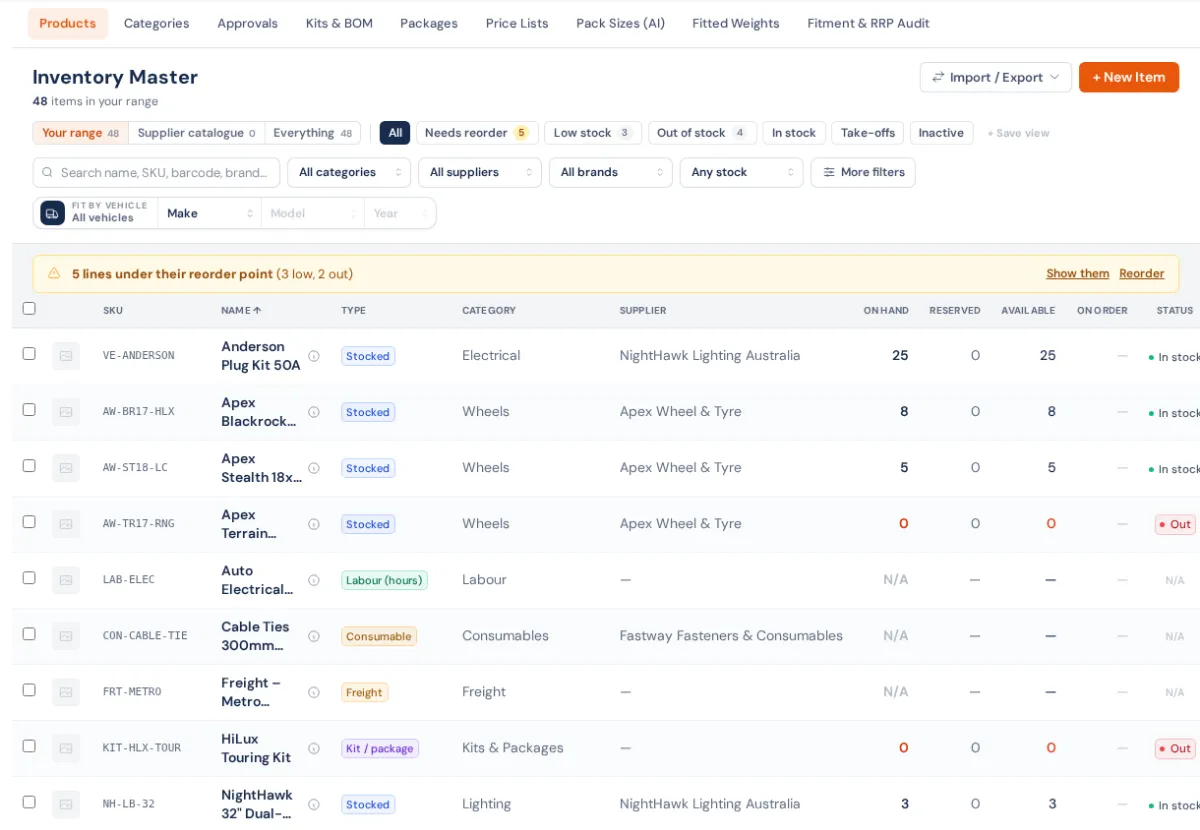
Inventory → Products (the page is headed Inventory Master) holds every line you can put on a quote, order or invoice.
- Stocked and Non-stocked parts are physical items. Stocked items track quantity per warehouse.
- Consumable, Service (flat rate), Labour (hours), Freight and External service lines never hold stock.
- Kit / package lines are built from other products. See Kits & BOM.
To add one, see Create a product. To open everything about one product, click its row. See Everything on a product's page.
Your range or the supplier catalogue
The switch at the top left picks which lines you see:
- Your range: the lines you stock, sell or order, plus services, labour and kits. The list opens here.
- Supplier catalogue: supplier feed lines you have never stocked, sold or ordered.
- Everything: both together.
Searching your range also tells you how many more matches sit in the supplier catalogue, with Show them too. See Your range vs the supplier catalogue.
Views
The tabs under the title are preset filters, each with a count:
- All: every active product.
- Needs reorder: has a reorder point and is under it.
- Low stock: on hand, but under its reorder point.
- Out of stock: stock items with none on hand.
- In stock: on your shelves now.
- Take-offs: one-off parts taken off customer vehicles.
- HQ-sourced (franchises only): head office's products you can order.
- Inactive: deactivated products.
Set some filters and click + Save view to keep them as your own tab. Saved views are kept in this browser. Hover a saved view and click its × to delete it.
Filters
One bar holds search (name, SKU, barcode or brand) and the four filters people use most:
- Category (including Uncategorised)
- Supplier: who you buy from
- Brand: products imported from Shopify get their brand from the Shopify Vendor, so filter by brand, not supplier, to see a vendor's range
- Stock: Needs reorder, Low stock, Out of stock or In stock
More filters holds the rest: Item type, Added (last 7, 30 or 90 days), Wheel / tyre specs, Status (Active, Inactive or Both), Take-offs only and, for a franchise, Source (own or head office products). With a wheel or tyre spec chosen you can also filter by PCD, rim diameter, width and profile. Extract specs from names reads sizes out of product names that have no specs yet.
Fit by Vehicle (make, model, year) narrows the list to parts whose fitment covers that vehicle. See Vehicle fitment on products.
Each filter shows as a chip you can remove. Clear all removes them all. Filters live in the page address, so ← Products on a product's page brings you back to the same search.
Columns
SKU, Name, Type, Category, Supplier, On Hand, Reserved, Available, On order (outstanding on open purchase orders), Status and Sell. Cost shows only with the finance.view_costs permission, and Margin also needs finance.view_margins. Kits set to auto-assemble count what their parts can build as available.
A yellow banner counts the lines under their reorder point. Show them opens the Needs reorder view and Reorder opens Purchasing → Replenishment.
Bulk actions
Tick rows and a dark bar appears:
- Print labels: barcode labels for the ticked products.
- Export selection: a CSV of just these rows.
- Activate / Deactivate.
- More:
- Move to supplier catalogue or Add to your range
- Franchise %: set Franchise price as a % off RRP, or Clear % to keep a fixed Franchise $
- Push to Shopify: create or update as drafts
- Find images (AI): results go to the Image finder review queue
- Find pack sizes (AI): results go to Pack Sizes
- Delete
Import and export by CSV is under Import / Export. See Import and export products by CSV.
Who can do it
- Anyone with inventory.view sees the list, prints labels and exports.
- + New Item, imports and every bulk change except labels and export need inventory.edit. Roles are set in Settings → Team → Roles.
If something's not right
- Delete says "in use (deactivate instead)": the product is on orders, packages or dealer pricing, so it can't be deleted. Those rows stay ticked; click Deactivate.
- "From the master catalogue — can't delete here": the product belongs to head office or another business.
- A product you added isn't in the list: check the switch isn't on Supplier catalogue, Status isn't on Inactive, and no chips are set. A product added by someone who isn't an owner or admin waits in Product approvals first.
- Cost or Margin columns are missing: your role doesn't have finance.view_costs or finance.view_margins.