Everything on a product's page
Click any product to see its stock, prices, suppliers and history. Edit product changes its fields; the tabs hold the per-product settings: min/max, suppliers, price breaks, kits, specs, fitment, compatibility, variants and more.
Where it is
- Inventory → Products — Click a row to open its page
Settings for this
- Settings → Team → Roles — inventory.edit, inventory.adjust, inventory.transfer, purchasing.create, finance.view_costs, finance.view_margins
- Integrations → Shopify — Pull Shopify images and descriptions for the Web content tab
Open a product from Inventory → Products. ← Products takes you back to the same search.
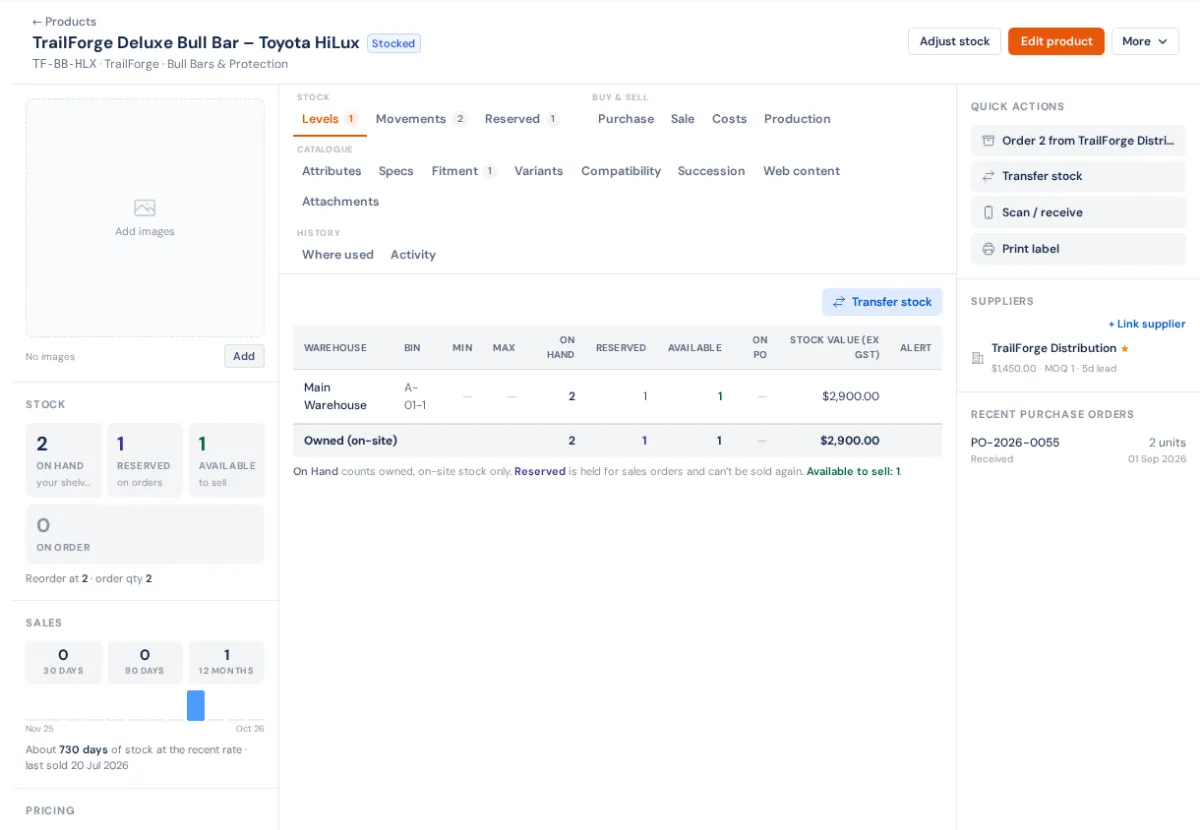
The header
Next to the name you'll see the item type and, where they apply, Inactive, Supplier catalogue, Out of stock or Low stock.
- Adjust stock: change the quantity on hand, with optional bin, batch and serials. Needs inventory.adjust. See Stock adjustments.
- Edit product: opens the same editor as Create a product, on its own section when you come from a tab's Edit button.
- ⋯ menu:
- Push to Shopify: create or update as a Shopify draft.
- Print product label: barcode, name and SKU sticker. With no barcode it prints the SKU.
- Duplicate: copy into a new product. Give it a New SKU and New Name. Fitments, attributes and supplier links copy too.
- Move to supplier catalogue / Add to your range. See Your range vs the supplier catalogue.
- Create kit: a new kit with this product as its first component (owners and admins).
- Scan / receive: opens the Scan Centre on this product.
Left side
- Images: drop files, upload, paste, or add from a URL, up to 12. Use the arrows to reorder and Set as cover to pick the main one. A product linked to Shopify mirrors the gallery there. See Product images.
- Stock: on hand, available and on order.
- Sales: sold in the last 30, 90 and 365 days, a 12-month chart and days of cover.
- Pricing: Sell, the tier prices, and supplier cost and margin if your role can see them.
- Details and Description.
Right side
- Quick actions:
- Order N from (supplier): a draft purchase order for the reorder qty. Needs purchasing.create and a linked supplier.
- Transfer stock.
- Scan / receive.
- Print label.
- Suppliers: + Link supplier adds another supplier with their SKU, cost and lead time. Hover a supplier and click × to remove it.
- Recent purchase orders.
The tabs
The tabs come in four groups. Only the ones that fit the item type show.
Stock (stock items only)
- Levels: stock per warehouse and bin, what's on order, and Min / Max per warehouse. Click Min or Max to edit it, and assign a bin where none is set (needs inventory.edit). Quick Transfer moves stock between warehouses. Off-site supplier stock is marked and is never dispatched.
- Movements: every receipt, pick, adjustment, transfer and assembly, with the warehouse, a running balance and a link to the document.
- Reserved: sales orders holding this product.
- Batches or Serials: when tracking is on. See Batch and serial tracking.
Buy & sell
- Purchase: linked suppliers (supplier SKU, lead time, preferred) and the purchasing rules. Edit purchasing opens the editor.
- Sale: the Sell Price Tiers (Retail, Dealer, Trade) with margin and markup, and the quantity price breaks. Add a break with a minimum qty and a price; it applies on quotes and orders for customers linked to a company. Edit pricing opens the editor.
- Costs: cost movements over time. Needs finance.view_costs.
- Components (kits) or Production (parts): the bill of materials, the Can auto-assemble and Can auto-disassemble switches, and Build or break kits. For a part, it lists the kits that use it. See Kits & BOM.
Catalogue
- Attributes: name and value pairs (Colour: Black).
- Specs (Wheel specs / Tyre specs once set): pick a Spec type, then fill in PCD, rim diameter, width, offset, centre bore, load rating, or the tyre size. Specs drive the wheel and tyre filters and compatibility checks.
- Fitment: the vehicles it fits. See Vehicle fitment on products.
- Variants: sizes or colours of one product. See Variants and superseded part numbers.
- Compatibility: conflicts, requirements and fitting alerts. See Compatibility rules.
- Succession: the part number this replaces or is replaced by.
- Web content: the images and description synced from Shopify, read-only.
- Attachments: files up to 20 MB. Set as default image or Set as default label image.
History
- Where used: quotes, orders, invoices and jobs with this product.
- Activity: every edit to cost, price, supplier and details, with who made it.
Who can do it
| Action | Needs |
|---|---|
| Edit product, Duplicate, Push to Shopify, Min/Max, assign bin | inventory.edit |
| Adjust stock, Build or break kits | inventory.adjust |
| Transfer stock | inventory.transfer |
| Order from a supplier | purchasing.create |
| Cost, Costs tab, value | finance.view_costs |
| Margins | finance.view_margins |
A franchise viewing a head office product can't edit it. Fitment and compatibility rules on it are managed by head office, but still apply to your quotes.
If something's not right
- No Stock tabs: the item type is labour, service, freight, external service or consumable, which never hold stock.
- No Order button in Quick actions: link a supplier first, under Suppliers.
- "Product duplicated, but its fitments, attributes or supplier links did not all copy": check those on the new product.
- Web content says "No Shopify content synced": the product isn't matched to Shopify, or content hasn't been pulled. Use Integrations → Shopify.