Vehicle stock: cost, recon and pricing
Each stock unit’s page holds the car’s identity, photos, specs, workshop jobs, its full cost ledger, documents and a Ready to sell checklist. Recon jobs and purchase orders roll their cost into the unit.
Where it is
- Dealer Management → Stock — Filter by status and ownership, sort by age or price, search by rego, VIN or stock number.
- Purchasing → Purchase Orders — The Charge to stock vehicle card on a PO.
Settings for this
- Settings → Workshop → Job types — Recon, PDI and conversion jobs use their job types; a hidden type stops the button working.
- Settings → Workshop → Checklists — The QC and handover lists a recon or PDI job runs through.
- Settings → Team → Roles — See cost of goods (COGS) shows unit cost and the cost ledger; See profit & margin % shows margin.
The stock list
Dealer Management → Stock shows every unit with its cover photo, status, source, days held and asking price.
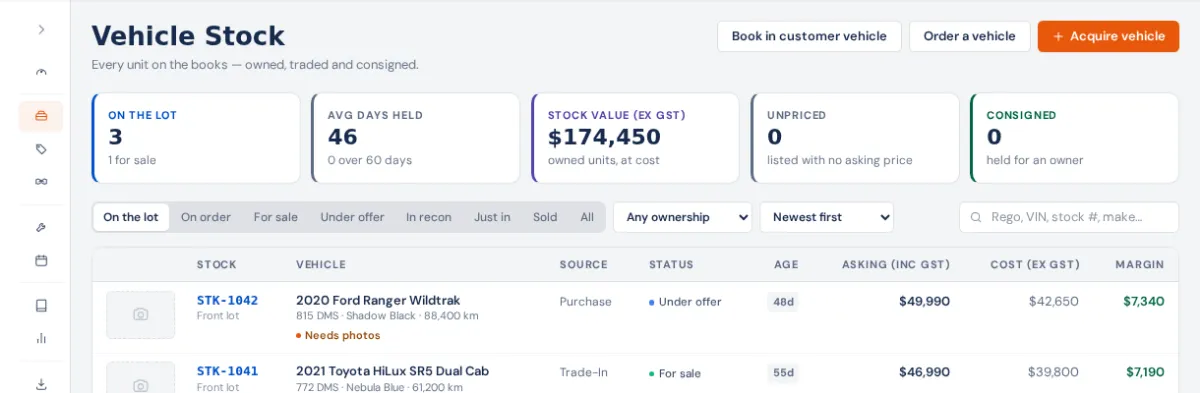
- Filters: On the lot, On order, For sale, Under offer, In recon, Just in, Sold, All. The ownership box narrows to Dealer-owned, Consignment or Customer-owned.
- Sort: newest first, oldest in stock, price either way, or stock number.
- Days held is coloured: under 30 days fresh, 30 to 59 watch, 60 to 89 aged, 90 and over stale.
- Needs photos & a price flags a car listed for sale without them.
- Tiles: on the lot, average days held, stock value at cost, unpriced and consigned.
A unit's page
Click a row to open it.
- Left: photos (Add photos; the first is the cover), the name (Tidy up this name fixes a shouted or doubled registry name), Identity, Money (asking price, unit cost, margin at asking) and On the books.
- Centre: Vehicle details (edit any field), Specs for tax & registration (GVM, GCM, tare, seats, fuel, cylinders, engine, fuel use, drive: these pick the tax category on a sale), Workshop jobs, viewings you schedule, the Vehicle cost ledger, the vehicle's record (ownership, warranty, compliance) and Documents.
- Right: Ready to sell and Linked records (the deal, the consignment agreement, the vehicle record).
Recondition it
In Workshop jobs:
- New recon job opens a reconditioning job for this unit in the workshop. No customer: the dealer pays.
- New PDI job opens a pre-delivery inspection job (see Running the PDI).
- New conversion job opens a conversion job.
Run the job as normal: clock on, add parts, finish it (Parts on a job, Clocking time). Then press Pull costs (or Pull job costs in the ⋯ menu). It adds the jobs' labour, parts and sublets to the unit's cost. It is safe to press again; it only adds what is new.
Cost it
The Vehicle cost card groups every dollar by category: vehicle purchase, shipping & freight, customs duty, transport, compliance & engineering, conversion and recon parts and labour, outside work (sublet), registration, warranty provision, other and adjustment. Each line links to the PO, job, shipment or document behind it.
- Add cost: a category, the amount ex GST, what it was for, a supplier or invoice reference and a supporting document. A negative amount records a credit.
- Issue parts: takes parts off the shelf (pick the warehouse and bin) and adds them to the unit at the product's average cost, or your override. Return to stock puts unused parts back and takes the cost off.
- From a purchase order: on any PO, the Charge to stock vehicle card charges the whole order, or single lines, to a unit with a cost category. Charged lines post to the unit ex GST (in AUD at the PO's rate) as the order is received. Press Post to vehicle after changing a line; it is safe to repeat. Stocked parts on a charged line go from the shelf onto the vehicle. Cancelling the PO takes the cost back off. See Raise and receive a purchase order.
- Shipping and duty from a shipment land through landed cost.
On older accounts the card is a simple Cost ledger with one adjustment box.
Price it and put it on sale
- Set the Asking price (inc GST) under Money (press Edit). "Nobody can buy a car with no price."
- Work down Ready to sell: asking price set, photos, PPSR certificate, roadworthy / safety, and reconditioned. Upload the PPSR and roadworthy under Documents, choosing their document type.
- Press Put on sale (shown while the unit is Acquired or In recon). The unit is now For sale.
Margin at asking is the asking price less the unit cost, so it is only right once every cost is in.
Statuses
Acquired, In recon, For sale, Under offer, Sold, Delivered and Withdrawn. The main button follows the unit: Put on sale, then Sell this vehicle, then Open DEAL-0001 (the deal's number) once a deal exists. Any other status is in the ⋯ menu (Mark …). A sold car's status comes from its deal (Complete sale), not from here.
If something's not right
- Unit cost and the cost card are missing: you don't have See cost of goods (COGS).
- Pull costs added nothing: the job has no clocked time, parts or sublets yet, or they were already pulled.
- The Charge to stock vehicle card isn't on a PO: it shows only for businesses with Dealer Management, and only when there are stock units to charge. Post to vehicle stays greyed until the PO is approved.
- "Parts couldn't be issued — no longer on hand where received": the received parts were moved or used. Issue them by hand from the unit.