Dealer pricing: tiers, product tier prices, group discounts and one-off prices
How a dealer’s price is worked out: their own price, the product’s Dealer / Trade / Franchise price, the tier’s group discount, the tier’s discount, then retail, with your minimum margin underneath.
Where it is
- Dealer Portal → Setup → Pricing tiers
- Dealer Portal → Setup → Product groups
- Dealer Portal → Dealers — Open a dealer: its tier on Details, one-off prices on Pricing
Settings for this
- Setup → Pricing tiers — Price, stock and drop-ship discount, order limits, group overrides per tier
- Setup → Product groups — Which products share a group discount
- Setup → Guardrails — Minimum dealer margin: the floor under discounts
- Inventory → Products — Each product’s Dealer, Trade and Franchise prices (Pricing card)
Only owners, admins and managers can see and change pricing tiers. Every price starts from your retail price (the product's sell price, ex GST); GST is added in the portal.
A tier, step by step
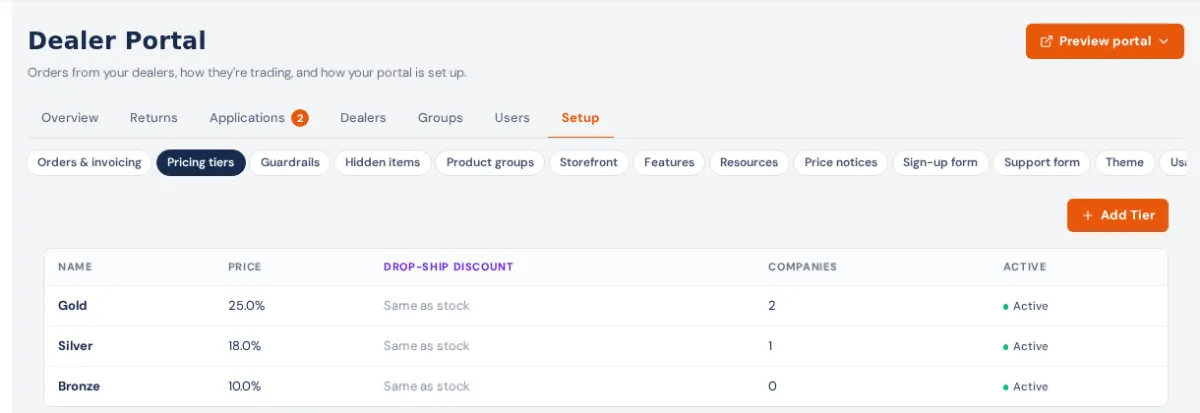
- Setup → Pricing tiers → Add Tier. "New tier" at 0% is made and opens.
- Tier name and Description.
- Price: A discount off retail, or Each product's Dealer price, Trade price or Franchise price (set on each product's Pricing card). A tier that uses a product price also sets the dealer company's CRM price tier to match, so staff quotes, orders and POS charge the same.
- Stock discount (%), or on a product-price tier Discount when a product has no … price (%).
- Drop-ship discount (%) (optional): blank means drop-ship orders pay the stock price.
- Minimum order (ex GST) and Maximum order (ex GST) (optional): blank uses the business default from Orders & invoicing.
- Sort order, Active, then Save.
- Group pricing overrides further down: a Stock % (and optional Drop ship %) for any product group. Save on the row; Remove takes it off.
Product groups
Setup → Product groups → Add Group. Fill in Name, Description, Sort order, Active, Save. Under Add products, search, tick, and press Add N to group. A product is in one group at most: the search only lists products not in a group yet. Groups also make collection cards (The storefront).
One dealer's own price
Open the dealer on Dealers → Pricing tab → Add override: search the product, choose % off or $ price (ex GST), press Set. + Drop-ship price gives it a different drop-ship price. These beat everything else.
How a dealer's price is worked out
BuildTrack goes down the list and stops at the first that applies:
| Order | What | Where |
|---|---|---|
| 1 | This dealer's own price for the product | The dealer's Pricing tab |
| 2 | The product's Dealer / Trade / Franchise price, if the tier uses one | The product's Pricing card |
| 3 | The tier's discount for the product's group | Pricing tiers → Group pricing overrides |
| 4 | The tier's stock discount | Pricing tiers |
| 5 | No tier: retail | The product's sell price |
Then your minimum margin (Guardrails) checks steps 3 to 5: if the price would be under it, the dealer pays cost ÷ (1 − margin), never above retail. Prices set by hand (steps 1 and 2) are left alone and listed as Under the floor.
Drop-ship orders follow the same order with the drop-ship values. A group's Drop ship % is only used when its tier has a drop-ship discount.
Portal pricing and staff pricing
- A quote, order or invoice your staff create for a dealer on a portal tier uses that dealer's portal price, unless a running price list or a negotiated price on the CRM company comes first.
- A company with no portal tier sees retail in the portal, whatever its CRM Price Tier says, while staff pricing uses that Price Tier. Put it on a tier that uses the matching product price to make both the same.
- Changing a dealer's Price Tier on the CRM company moves it to the portal tier linked to that price, when one exists.
- Inventory → Price lists apply to staff pricing only.
If something's not right
- A tier won't switch off: dealers are still on it. Save says how many; move them first (Dealers → the dealer → Pricing tier). A tier switched off earlier with dealers on it shows Inactive · still pricing its dealers.
- "Stock discount must be between 0 and 100" or "The maximum order must be more than the minimum": fix the number and save again.
- A dealer pays more than you expect: the margin floor held it up. Check the Held at the floor list on Guardrails.
- A product isn't in the group search: it's already in another group. Remove it there first.