Adding dealers and inviting their logins
Make a CRM company a dealer, set its tier, status, terms and credit, and invite its people as Owner, Buyer or Viewer.
Where it is
- Dealer Portal → Dealers
- Dealer Portal → Users — Every dealer login
Settings for this
- The dealer’s panel → Details — Tier, status, terms, credit, on account, drop ship, account group, accounts email
- The dealer’s panel → Data — Data access (API & feeds) and its keys
- Setup → Pricing tiers — The tiers you put dealers on
Add a dealer
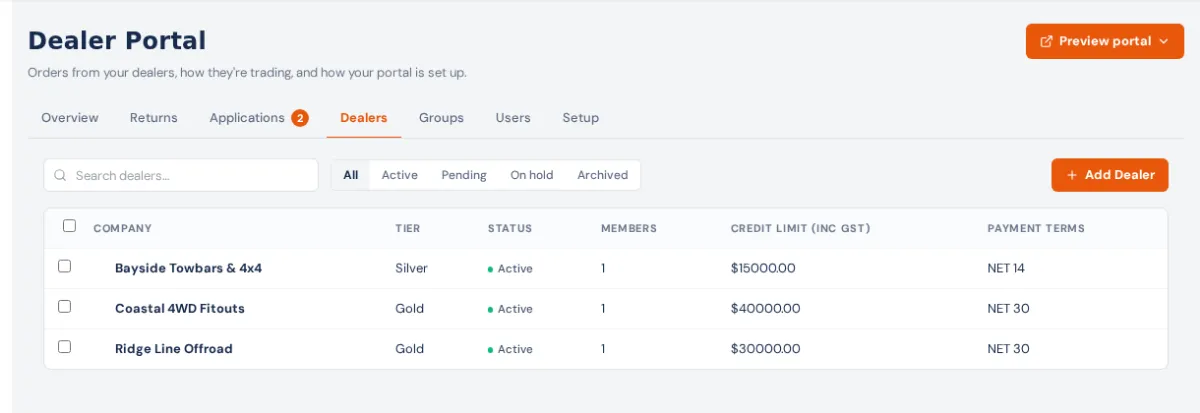
- Dealers → Add Dealer.
- Company: pick a CRM company that isn't a dealer yet, or press Create dealer and fill in Business name (plus optional email, phone and ABN).
- Pricing tier (Unassigned means retail) and Add dealer. It opens, status Pending.
(A business that applied through "Become a dealer" is set up when you approve it: Applications.)
The dealer's panel
Tabs: Details, Users, Pricing, Data and Activity. Preview as this dealer at the top opens the portal as them, read-only.
On Details: Pricing tier, Status (Pending, Active, On hold, Archived), Payment terms (days) (0 = cash on delivery), Credit limit $ (inc GST) (blank uses the CRM company's credit limit), Account group (see Head offices and stores), Dealer type, Accounts email (where invoices and statements go), Can order on account, Can drop ship and Internal notes. Press Save changes.
What Status does: On hold and Archived stop new orders and quote requests; the dealer can still sign in and see their account. Pending and Archived can't use the API or feeds. To shut someone out completely, remove their logins. The CRM company's On hold (block new orders) tick stops orders too. Your staff can always enter an order for a dealer.
Pricing holds this dealer's own prices (Dealer pricing). Data has Data access (API & feeds) and their keys (Revoke stops one). Activity shows recent sales orders and invoices. Remove dealer turns it back into an ordinary company; remove its logins first.
Invite their people
- Open the dealer → Users → + Invite user (owners, admins and managers only).
- Email address and Role: Owner (everything, including their team, delivery address, returns, data keys and connecting their own BuildTrack Pro), Buyer (orders and returns) or Viewer (read only; can't check out).
- Send invitation. The box says Invitation sent, with Copy link (the link expires in 14 days), or that the email didn't send (share the link yourself), or that they already sign in to BuildTrack Pro and your portal now opens from their account.
- Inviting the first login makes a Pending dealer Active.
Under Invites, Revoke cancels an unused invite. Under Active users, change a role or Remove. A dealer's Owner can also invite and manage their own team from their portal's Account page.
Many at once: tick dealers on the Dealers list, choose Invite a login (company email) and Review invites…: dealers that already have a login, an invite waiting, or no email are skipped. Dealer Portal → Users lists every login; tick some to Change portal role, Email their invite again or Remove from the portal.
If something's not right
- "An owner, admin or manager invites dealer logins" instead of the button: your role can't invite.
- Invite refused: it's one of your own staff's emails (use Preview portal instead), or already a customer portal login.
- Dealer can't order: Status is On hold or Archived, Can order on account is off and they haven't paid by card or transfer, they're over their credit limit, or their login is a Viewer.