The dealer storefront: dashboard, collections, brands, promotions and announcements
Lay out what dealers see: dashboard sections, the welcome line and announcement strip (with a button), collection and brand cards, promotions, the Products page filters and product cards.
Where it is
Settings for this
- Storefront → Layout — Which sections show, welcome line, announcement strip and its button
- Storefront → Collection cards — From product groups or categories; look, photos, images
- Storefront → Shop by brand — Featured brands, brand pages, Exclusive badge
- Storefront → Promotions — Hero banners, strips and Products-page headers
- Inventory → Categories — The category tree collection cards can use
Open Setup → Storefront. There's no draft here: each part goes live when you save it.
Layout
Tick the sections dealers see: Collection cards on Products page, "Vehicle" filter, "Wheels & tyres" filter, Brand cards on Products page, Category cards on brand pages, and on the dashboard Brand strip, Promotions, Collection strip, "Buy again" and "New arrivals". Turn the vehicle or wheels filters off if your range isn't vehicle-specific or you don't sell wheels.
Then the words: Welcome line (under the greeting), Announcement strip (top of dashboard) (such as a holiday closure) and Heading over the brand cards.
Announcement button (on the strip): No button, Download their price list (CSV, their prices), A file or resource (pick one, or upload a price file or flyer here and it becomes a published resource), or A web link (starting https://). Set the Button text. A resource that isn't published, or is limited to some tiers, only shows the button where the resource shows.
Press Save layout.
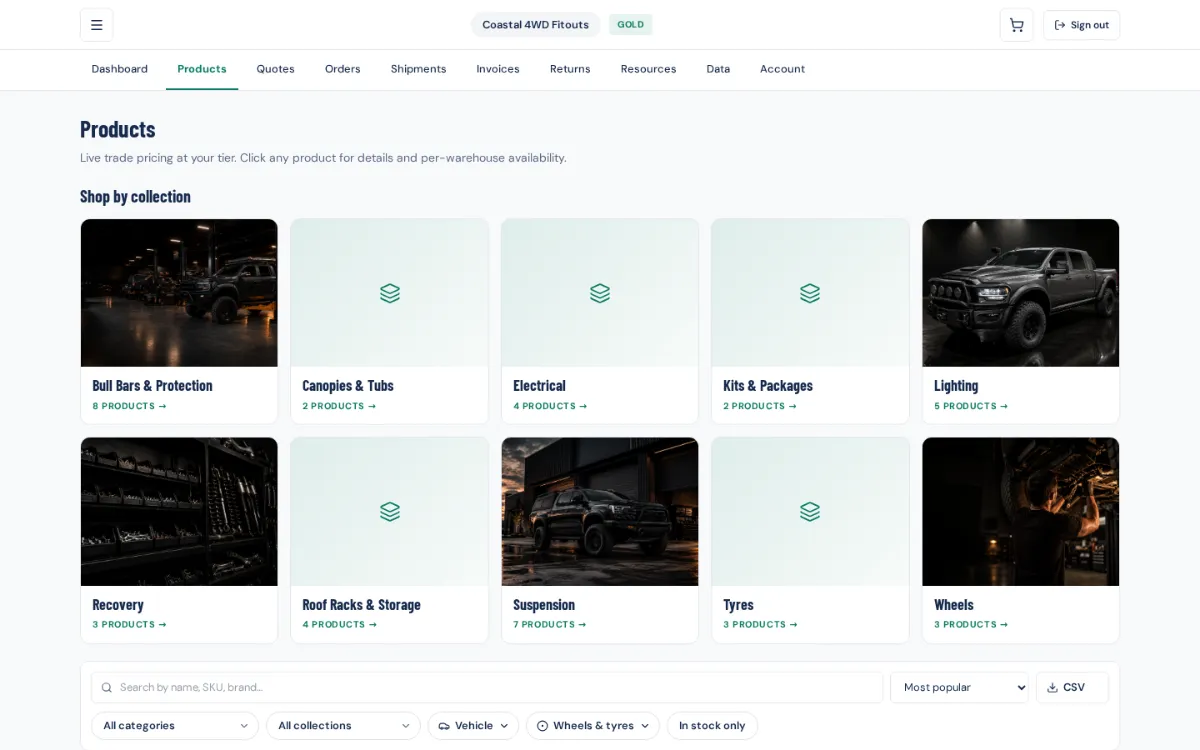
Collection cards
Choose where cards come from: Product groups or Categories (the same tree as Inventory → Categories). Pick a Look (Cards, Tiles, Circles or Chips), Photos (Fill the card or Show whole photo) and Dashboard (Scrolling row or Grid). On each card add a Card image (landscape 4:3, about 800 × 600) and switch Shown in portal / Hidden from portal. Hiding a card doesn't hide its products.
Shop by brand
Pick from Choose a brand… and press Feature brand. Add a display name, tagline, story, Logo and Brand page banner (about 1600 × 500). Tick Exclusive to badge the brand and every product (change the badge text if you like). Arrows reorder; the bin stops featuring it. Pick a Look: Cards, Logo wall, Spotlight or Chips. A brand with no active products stays hidden.
Products page filters and product cards
- Products page filters → Layout: Filter bar, Sidebar, Sidebar, all open or Filters button. Phones always get a Filters button.
- Product cards → Look: Standard (photo, name, SKU, price, Add to cart) or Trade (SKU first, a big price over the RRP and a quantity box).
These save as you pick them.
Promotions
Press Add promotion: Placement (Dashboard hero: the first active one shows; Dashboard banner: all show; Products header), Headline, Supporting text, Button label, Button links to (Nothing, Products page, A collection, Quotes, Orders, Invoices or External URL), a Background image or Background colour, Text colour, Starts (optional), Ends (optional), Order, and Show only to these pricing tiers (empty = everyone). Tick Active and press Create promotion. Each shows Live, Scheduled, Paused or Ended.
If something's not right
- No collection cards: the groups or categories need active products, and the card mustn't be Hidden from portal.
- Announcement button missing: its resource isn't published, or the dealer's tier can't see it.
- Promotion not showing: check its dates, Active, and the tiers it's limited to.