Setting up the Dealer Portal: theme, pricing, checkout and every Setup screen
Every Dealer Portal setting is on one of the Setup screens. This is the map: what each screen sets, who can change it, and which guide explains it.
Where it is
- Dealer Portal → Setup — Opens on Orders & invoicing
Settings for this
- Setup → Orders & invoicing — Draft invoices, order limits, delivery, payment, drop ship
- Setup → Pricing tiers — Tier discounts, product tier prices, group discounts, tier order limits
- Setup → Guardrails — Hide unpriced products, minimum dealer margin
- Setup → Hidden items — Hide products, categories, brands or suppliers from dealers
- Setup → Product groups — Groups for discounts and collection cards
- Setup → Storefront — Dashboard, collections, brands, promotions, filters, product cards
- Setup → Features — Optional sections, AI Quote, delivery date emails, stock display, lead times
- Setup → Resources — Install videos, PDFs, links and articles
- Setup → Price notices — Tell dealers about price changes
- Setup → Sign-up form — The "Become a dealer" form
- Setup → Support form — The form behind the dealer Support tab
- Setup → Theme — Brand, fonts, web address, embed code
- Setup → Usage — API, feed and resource use per dealer
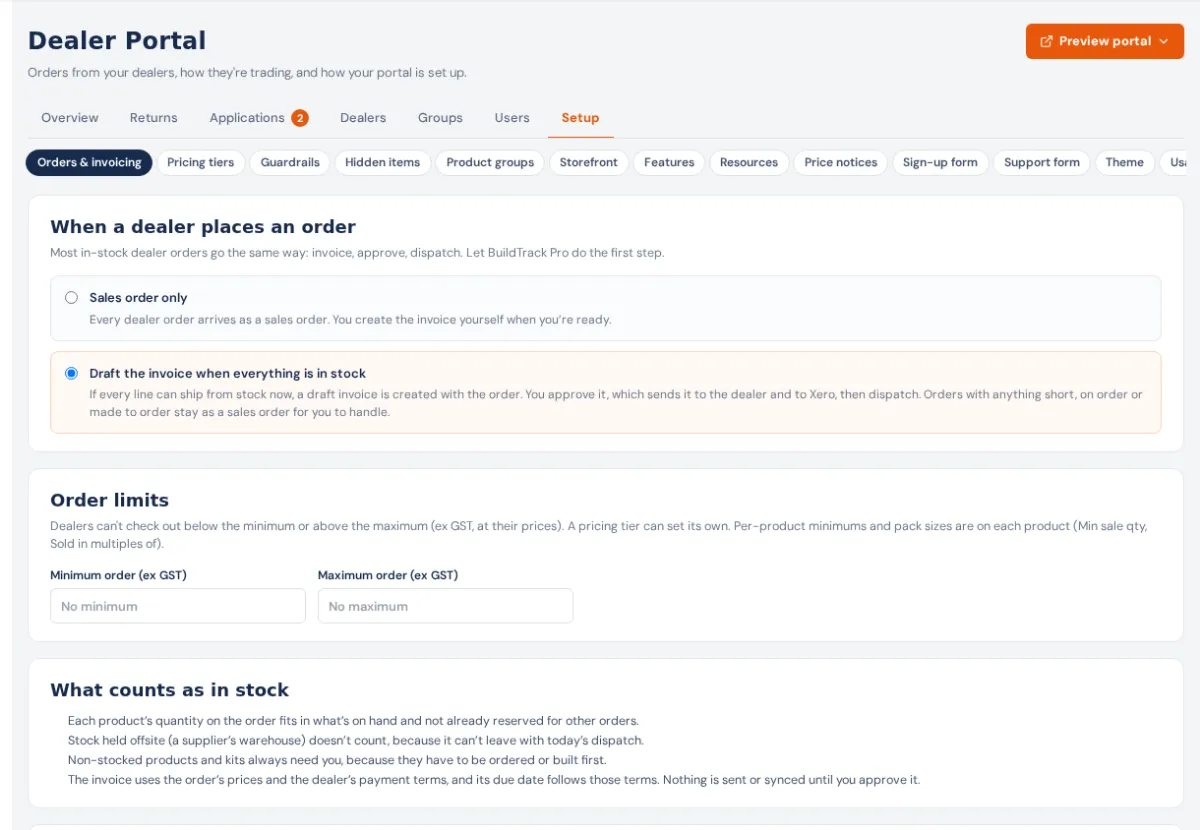
Everything below is in Dealer Portal → Setup: a row of buttons across the top, one per screen.
| Screen | What it sets | Guide |
|---|---|---|
| Orders & invoicing | Draft the invoice for in-stock orders, minimum and maximum order, delivery and pick up, bank transfer, drop ship and its fee | Checkout rules |
| Pricing tiers | Each tier's price (a discount, or each product's Dealer / Trade / Franchise price), drop-ship discount, order limits, group discounts | Dealer pricing |
| Guardrails | Hide products with no price or no image, a minimum dealer margin, the Needs attention lists | What dealers can see |
| Hidden items | Products, categories, brands or suppliers hidden from dealers only | What dealers can see |
| Product groups | Sets of products for group discounts and collection cards | Dealer pricing |
| Storefront | Dashboard sections, welcome line, announcement strip and button, collection and brand cards, promotions, filters, product cards | The storefront |
| Features | Resources, Data, CSV, back-in-stock alerts, price notices, returns, Support, AI Quote, delivery date emails, stock display, "Order now" lead times | Portal features |
| Resources | Your library for dealers | Resources and notices |
| Price notices | Notices about price changes | Resources and notices |
| Sign-up form | The "Become a dealer" form and its emails | Applications |
| Support form | Request types, questions and where requests go | The Support tab |
| Theme | Brand, logos, colours, fonts, the web address, your own domain, the embed code | Theme and web address |
| Usage | Last 30 days of API, feed and resource use per dealer | Resources and notices |
Settings outside the Dealer Portal that change it
- Integrations → Stripe card payments: the Dealer portal switch turns on card payments at checkout.
- Integrations → Freight carriers and Settings → Shipping & freight: who prices delivery, and your freight margin.
- Settings → Business details: your BSB and account number. Bank transfer only shows to dealers when both are filled in.
- Settings → Your domain: run the portal on your own address.
- Settings → Orders: who is on duty for dealer orders and hears about new ones.
- Settings → AI usage: your monthly AI limit, which the AI Quote tab counts toward.
- Each product: Min sale qty, Sold in multiples of, Max order qty and lead time (Edit product), and its Dealer / Trade / Franchise prices.
- Each dealer: tier, status, terms, credit, on account and drop ship, in its panel on Dealers.
Who can change what
- Owners, admins and managers: every screen except the two below, inviting dealer logins, and Preview portal.
- Anyone who can change settings: the Sign-up form, the Support form, and approving or declining applications.
- Others who can see settings can look but not change. The Guardrails and Hidden items lists hide cost and margin from anyone who can't see costs.
Saving
- Theme saves a draft as you type; dealers see nothing until Publish changes.
- Every other screen goes live when you press its Save button (Storefront looks save as you pick them).