Marketing: what is where (and what needs the add-on)
The Marketing section holds forms, your website, reviews, campaigns, automations, audiences, content and reports. Forms, Website and Reviews are on every plan; the rest is the Marketing add-on.
Where it is
- Marketing → Overview — Last 30 days, starter automations and quick actions.
- Marketing → Campaigns
- Marketing → Automations
- Marketing → Audiences
- Marketing → Forms
- Marketing → Website
- Marketing → Reviews
- Marketing → Content
- Marketing → Reports
Settings for this
- Settings → Your domain — Send email from your own domain, and put customer links and portals on your web address.
- Marketing → Content → Brand kit — From name, reply-to, physical address and legal footer for every marketing email.
- Settings → Branding — Logo and accent colour used in marketing emails, documents and the website.
- Marketing → Audiences → Suppressions — Who never gets marketing, per channel.
- Settings → Roles — Marketing view / edit / publish permissions.
- Settings → Billing & plan — Whether your business has the Marketing add-on.
Open Marketing in the main sidebar. The section has its own white sidebar on the left; sub-pages show under each entry while you're in it.
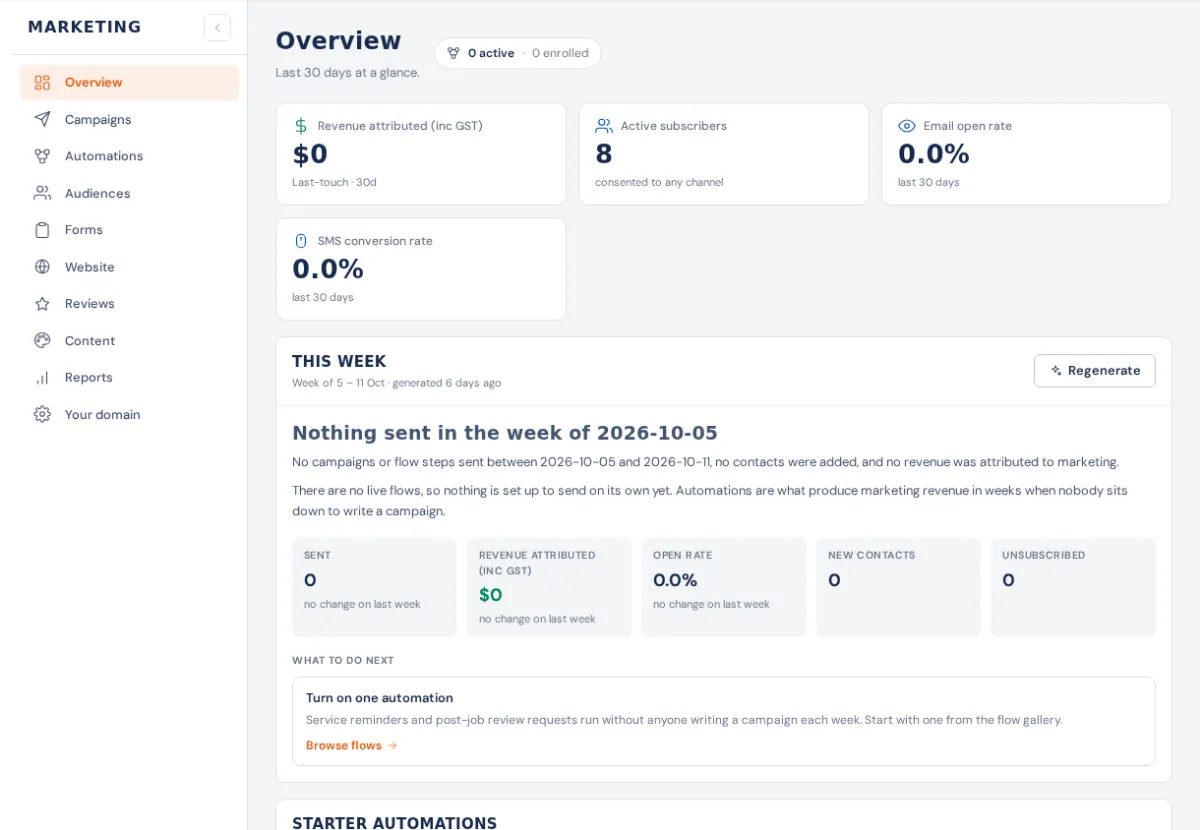
What's in the sidebar
| Entry | What it's for | Plan |
|---|---|---|
| Overview | Last 30 days: revenue from marketing, subscribers, open and SMS conversion rates, a weekly AI digest, upcoming sends, top flows and campaigns. | Add-on (without it you see what's included) |
| Campaigns | One-off email or SMS sends to a list or segment, plus a calendar. | Add-on |
| Automations | Flows that send on their own when something happens (quote sent, invoice paid, service due…), templates, and the fleet, stock watchlist and franchise cascade tools. | Add-on |
| Audiences | Lists, segments, suppressions, lead scoring and lifecycle stages. | Add-on |
| Forms | Form Builder and every submission. | Every plan |
| Website | Website Builder and landing pages. | Every plan (landing pages need the add-on) |
| Reviews | Your Google review link and review requests. | Every plan |
| Content | Email templates, saved blocks, images, brand kit, social posts. | Add-on |
| Reports | Summary, performance, attribution and deliverability. | Add-on |
| Your domain | Opens Settings → Your domain. | Every plan |
Entries with a lock need the Marketing add-on. Opening one shows what the add-on includes and a Talk to us about Marketing button.
Starter automations (every plan)
The Overview (or, without the add-on, the Marketing home page) has three ready-made automations. Each stays Off until someone presses Switch on:
- Review request: two days after an invoice is paid, ask for a Google review. Needs your review link on the Reviews page first.
- Service reminder: two weeks before a vehicle's next service is due, with a follow-up a week later.
- Rego reminder: 30 days before a vehicle's rego expires.
Without the add-on these three are your only automations, they share 500 emails a month (the card shows how many you've used), and the emails carry a small BuildTrack footer. With the add-on you can open each one (Edit) in the flow builder.
AI Composer
With the add-on, AI Composer at the bottom of the Marketing sidebar writes an email or SMS from a brief, suggests subject lines, rewrites a paragraph, or reviews a draft for spam triggers and broken tags. It never changes anything itself: you copy what you want. It uses AI credits.
Who can do it
- Seeing Marketing needs Marketing view (or Settings view). Changing campaigns, flows and audiences needs Marketing edit; switching on starter automations needs Marketing edit or Marketing publish. Set these in Settings → Roles.
- Consent, suppressions, unsubscribes and quiet hours are checked at the moment each message sends, whatever you build. See Consent, unsubscribes and suppressions.
Where the settings live
There's no single "Marketing settings" page. The settings are:
- Settings → Your domain: the address emails come from, and your web address for links and portals.
- Brand kit: from name, reply-to, physical address, legal footer.
- Settings → Branding: logo and accent colour.
- Each campaign's Settings step: send time and quiet hours.
- Each automation's trigger step: when it fires and how often one customer can go through it.
- Each form's Marketing tab: whether submissions start automations and join a list.
- The contact's Marketing section: their email, SMS and push consent.