Your Home page: widgets, layout and the morning briefing
Home is yours to arrange: add, move and resize widgets with Customise. Admins set the starting layout for each role under Settings → Home layouts.
Where it is
Settings for this
- Settings → Home layouts — Starting layout for each role, and pinned widgets
- Settings → AI usage — The AI briefing stops when AI is off
Home is the first page you see. It greets you, says what's on today, and shows your widgets.
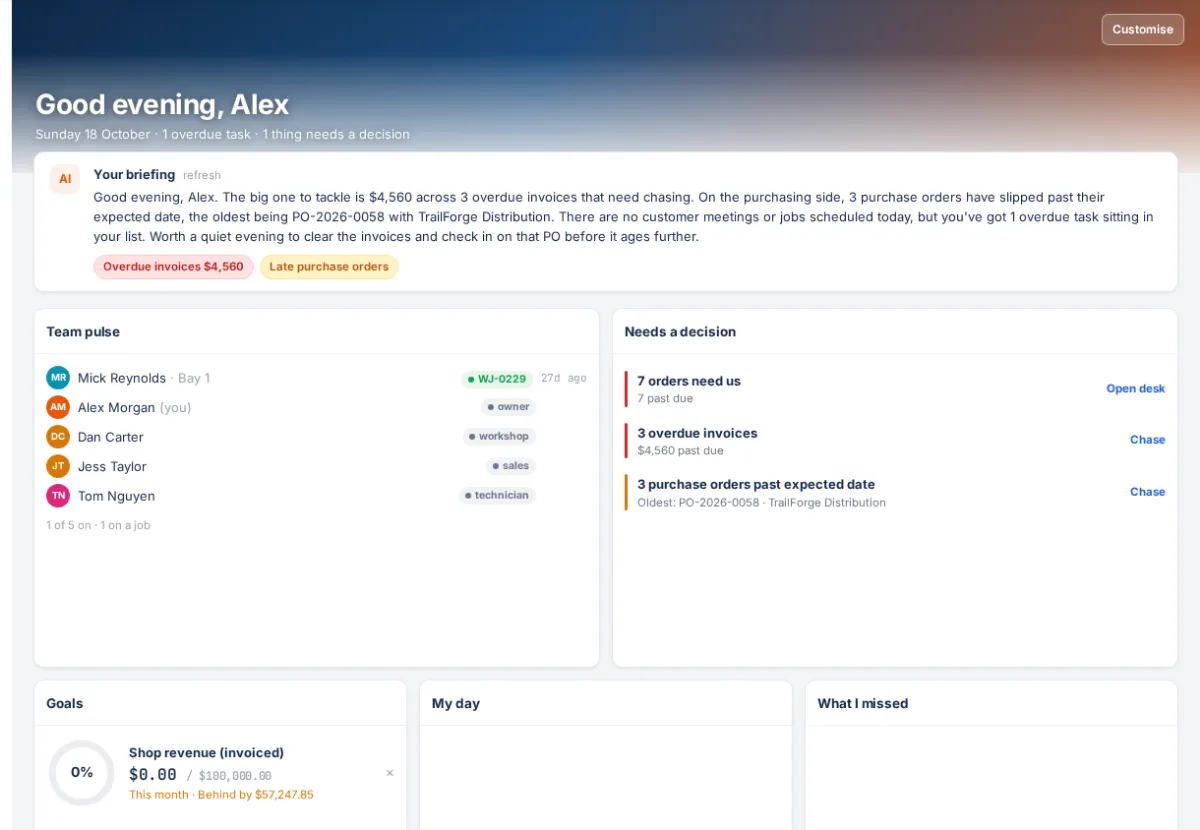
The briefing
Under the greeting, Your briefing is a short AI summary of what needs you today (on Fridays, Your week, wrapped), with chips that open the records. Press refresh for a new one. It shows to people who can see invoices, quotes, purchasing or reports, and stops if AI is switched off under AI usage.
Arrange your Home
- Press Customise (top right).
- + Add widget opens the list, grouped My work, The shop, Reports and Personal. Press Add (or Choose… for a report).
- Drag a tile by its handle to move it; S / M / L / XL resize it; ✕ removes it.
- Pick a background mood or Upload a photo, or Copy layout from… a teammate.
- Click the greeting to set a nickname.
- Press Done.
Reset puts back the starting layout for your role (your own arrangement is lost).
The widgets
- My work: My day (today's jobs, yours first), What's next (meetings and dated to-dos), Clock (clock on and off, job timer, this week's hours), To do, What I missed, Goals.
- The shop: Needs a decision (orders waiting, overdue invoices, late POs, expiring quotes), Team pulse, Who's out, Academy, Celebrations (birthdays and work anniversaries from Team), Weather, Exchange rates, Time zones.
- Reports: Report, any report from the library with its own date range.
- Personal: Sticky notes, Quick actions, Pinned (your sidebar favourites), Links.
You only see widgets your role can use (for example My day needs the workshop and Workshop switched on).
Set the starting layout for each role (admins)
- Open Settings → Home layouts.
- Pick a template: Technician, Workshop / service advisor, Sales, Parts & purchasing, Manager / owner or Everyone else.
- Add widgets, set each one's width and height, reorder with ↑ ↓, and tick Pinned for any that can't be removed.
- Press Save layouts. Use built-in goes back to BuildTrack's layout for that role.
A template is what someone sees the first time they open Home. Changing it never rearranges anyone's Home; they pick it up with Customise → Reset.
If something's not right
- A widget can't be removed: it's pinned by your role's template.
- Home is empty: press Customise → + Add widget, or Reset.
- The setup checklist isn't here: it's under Settings → Setup checklist and on Reporting → Executive.