Roles and permissions: who can see and do what
Each person has one role. Settings → Roles is a grid of ticks deciding what each role can see and do, including whether it sees costs, margins and labour rates.
Where it is
- Settings → Roles — The Roles & Permissions grid
- Settings → Team — Change a person's role
Settings for this
- Settings → Roles — Tick or untick a permission for a role
- Settings → Modules & flow — Switching Workshop off hides its permission rows
- Settings → Billing & plan — Add-ons such as Manufacturing add their own rows
Everyone has one role. The role, not the person, holds the permissions, so changing a role changes it for everyone with that role.
- Owner and Admin always have full access, whatever the grid says.
- The other roles are manager, sales, workshop, warehouse, purchasing, accounting, support, staff and technician. A new business starts each with sensible defaults; you can change any tick.
Change what a role can do
- Open Settings → Roles.
- The strip at the top shows how many permissions each role has.
- Tick or untick a box. It saves straight away and applies the next time that person loads a page.
- ALL and NONE at the top of a column grant or remove everything for that role.
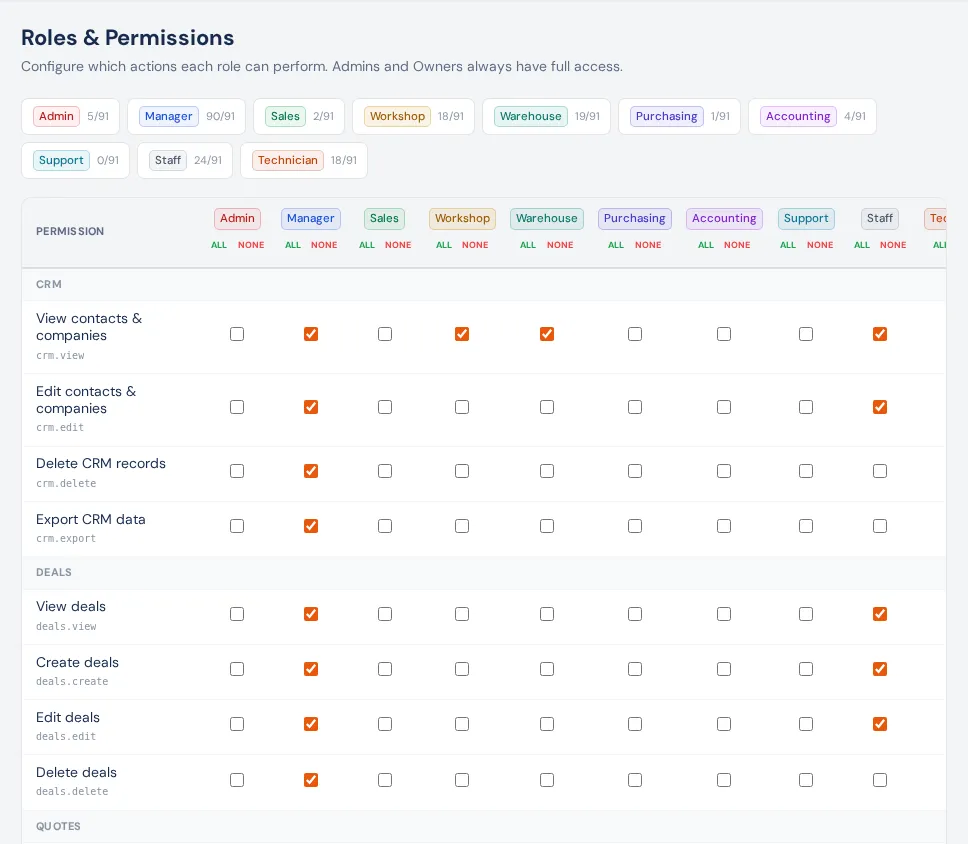
To move a person to another role, use Edit on Settings → Team. See Invite your team.
What the permissions mean
Most rows read as they sound (View, Create, Edit, Delete for each area). The ones people ask about:
- Financials: See cost of goods (unit, landed and average cost, supplier cost), See profit & margin %, See others' labour rates (everyone always sees their own) and See revenue totals (dashboards and money reports). Leave these off for technicians and the workshop floor, so they see the work, not the money.
- Quotes: Approve quotes approves a quote held for internal approval. Apply discounts above threshold lets someone go below the pricing floor.
- Invoices: Approve invoices, Record payments, Give discounts (counter sales and invoices).
- Inventory: Adjust stock levels, Approve stock counts over the value limit, Receive stock (GRN), Transfer between locations, Allocate stock to jobs.
- Dispatch: Use Dispatch: the board, TV mode, Day close and Performance. Owners, admins, managers and the warehouse role have it by default. It shows no prices or costs.
- Workshop (shown while Workshop is on): Perform QC sign-off, Mark jobs delivered, Manage technicians' time, Assign technicians & bays.
- People: Approve leave, Manage workers, PINs, balances, See everyone's timesheets, Correct, add, void and approve shifts.
- Reports: View dashboards, View financial reports, View operations reports, Export reports (the CSV buttons on report pages; without it they're greyed out).
- Settings: View settings opens Settings and Integrations; Edit settings changes most of them, including this grid.
- Users: View team members, Invite new members, Manage roles & status, Deactivate members.
- Approvals: View product approvals (opens Products → Approvals), Approve or reject new products. Everything anyone can approve, from every area, is in Approvals; see Approvals.
- Audit: View audit log, Export audit log.
- Company: Manage company settings saves Business details, Branding and Quotes & invoices.
Add-ons you have add their own rows (for example Manufacturing: view, manage BOMs, approve BOM changes, build).
Who can change it
Only someone with Edit settings can tick boxes. Everyone else sees "You have read-only access to role permissions".
If something's not right
- "You don't have access to this": the person's role is missing the permission for that page. Tick the matching View row.
- A page is missing from someone's sidebar: the sidebar only shows what their role can open.
- A technician sees costs or margins: untick the four Financials rows for the technician role.
- A whole area is missing for everyone: it may be an add-on that isn't on (Billing & plan) or a module that's switched off (Modules & flow).
- Settings won't open: the role needs View settings. Everyone can still reach their own two-step sign-in from the avatar menu → Sign-in security.