Approval settings: what needs sign-off, and who signs it off
Settings → Approvals lists every approval BuildTrack has with its real setting. Quote approval, the PO approval limit and the stock count limit are changed right there; products, invoices, leave and BOM changes say how they work and who approves them.
Where it is
- Settings → Approvals — Every approval, its limit and who approves it
- Approvals — Everything waiting for your sign-off
Settings for this
- Settings → Roles — Who can approve: Approve quotes, Approve purchase orders, Approve invoices, Approve leave and the rest
- Settings → Quotes & invoices — The same quote approval settings, with the pricing floor
- Settings → Purchasing → Receiving controls — The same PO approval limit, with over-receipt tolerance
- Inventory → Cycle Counts — The same stock count limit
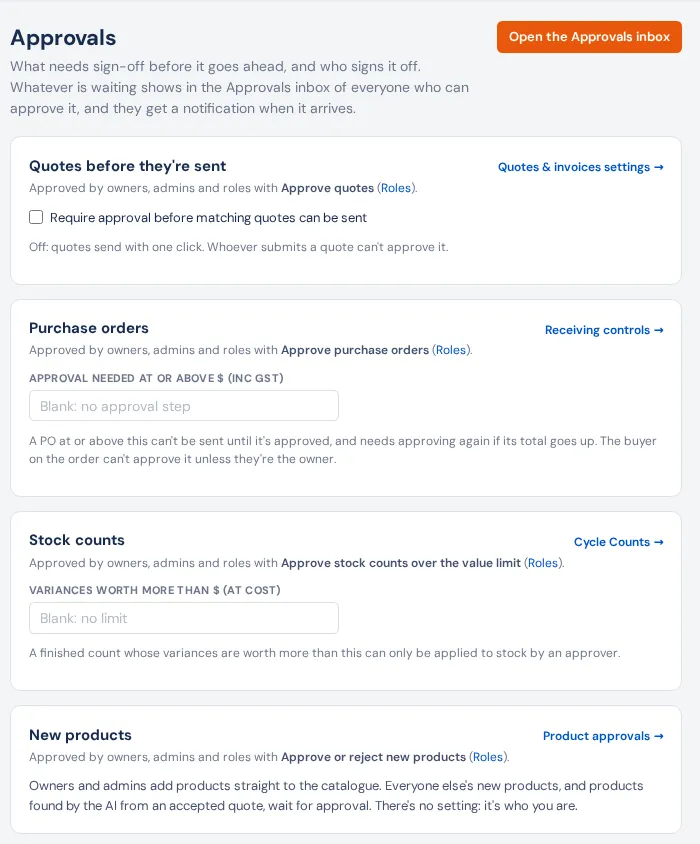
Settings → Approvals is one page with a card for each approval. Each card says who approves it (owners, admins and the role permission named, with a link to Settings → Roles) and links to the screen where it's worked.
The ones you set here
| Card | What you set | Default |
|---|---|---|
| Quotes before they're sent | Tick Require approval before matching quotes can be sent, then Quote total at or above $ and/or Also when any line breaches the pricing floor | Off |
| Purchase orders | Approval needed at or above $: a PO at or above it can't be sent until approved, and needs approving again if its total goes up | Blank: no approval |
| Stock counts | Variances worth more than $ (at cost): a finished count over it can only be applied by an approver | Blank: no limit |
Change a value and press Save on that card. These are the same settings as on Settings → Quotes & invoices, Receiving controls and Cycle Counts: change either and both show it.
The ones that just work
- New products: owners and admins add products straight away; everyone else's new products (and products found from an accepted quote) wait in Product approvals. See Product approvals.
- Invoices: not forced by a value. Someone who can't approve presses Submit for Approval on a draft invoice. See Create an invoice.
- Leave: every request waits. The person's manager hears first; anyone with Approve leave decides. See Leave.
- BOM changes (Manufacturing): switched on in Manufacturing → Settings.
Where approvers see them
Everything waiting goes to the Approvals inbox of everyone who can approve it, and they get a notification. See Approvals.
Who can change it
Changing a value needs Edit settings. Everyone with View settings can read the page.