Everything on a contact's page
A tour of a customer's record: the action bar, At a Glance numbers, Details, Marketing, Portal, the activity timeline and every linked quote, job, invoice and vehicle.
Where it is
- CRM → Contacts — Open any contact to see their page.
Settings for this
- Settings → Custom fields — The Custom Fields block on the page (its Manage link opens this).
- Integrations → Gmail — Connect your Gmail so Email sends from the page and emails show on the timeline.
- Integrations → Inbox, SMS & phone — Your SMS number (for Text) and phone system (for Call).
- Settings → Customer portal — What the customer sees when you invite them.
On a computer the page has three columns. On a phone the same things sit on tabs: Overview, Activity, Vehicles, Documents and Details.
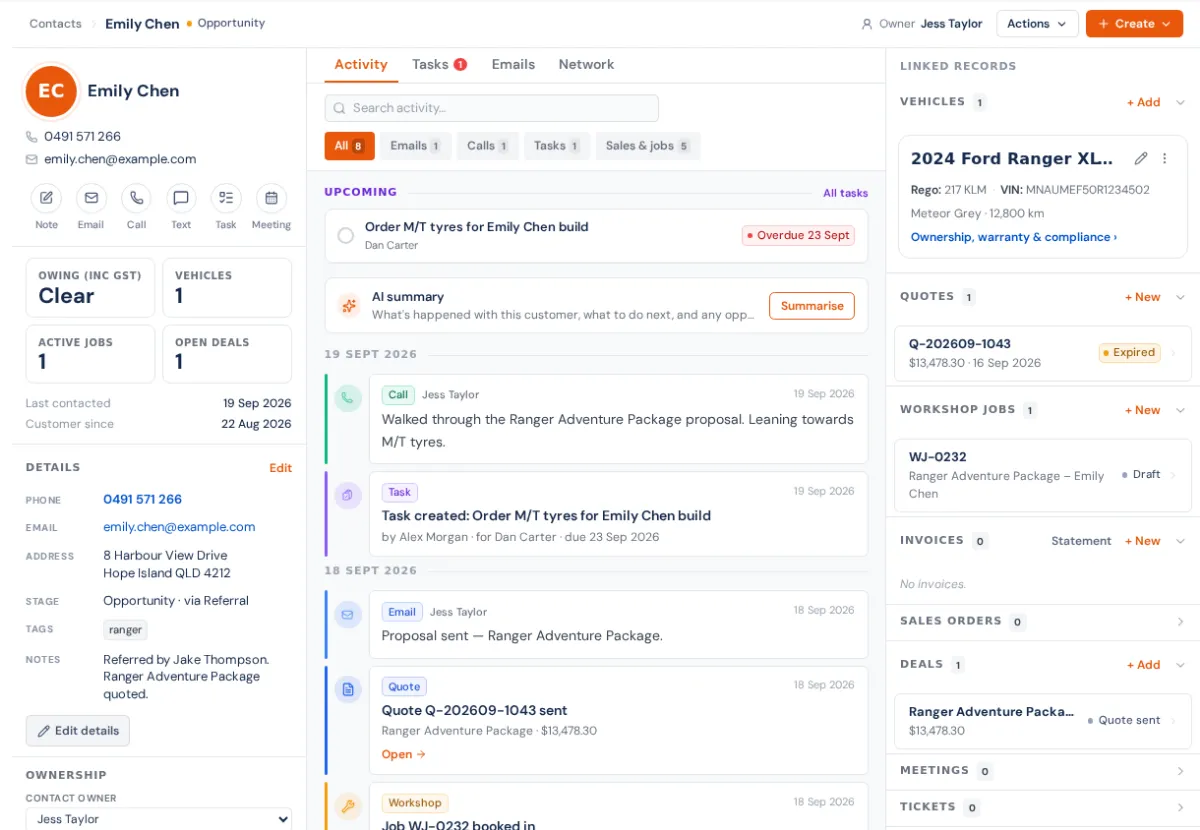
The header
- Contacts › takes you back to the list. Next to the name: their lifecycle stage and Inactive if they are.
- Owner shows who looks after them.
- Actions: Send booking link (they pick a time from your calendar; needs calendar access), Customer statement (see Customer statements), Copy email, Copy phone, Merge a duplicate… and Delete contact.
- Create: Build request, Quote, Workshop job (when Workshop is on), Sales order, Invoice, Deal, Ticket, Vehicle and Task. Each opens already filled in with this customer.
Left column
- Action bar: Note, Email, Call, Text, Task and Meeting.
- Email sends from your own Gmail when you've connected it (Gmail). Otherwise it logs an email you sent elsewhere.
- Call rings your extension and dials them when a phone system is connected, and logs the call either way.
- Text sends an SMS from your business number. Replies come back to the Inbox. It's greyed out until they have a phone number.
- At a Glance: Owing (inc GST) (opens their statement), Vehicles, Active jobs, Open deals, plus Last contacted and Customer since. Owing only shows if you can View invoices.
- Details: phone, email, Account (their company), Bills to (company name and ABN on their documents), address, stage, tags and notes. Edit details opens the form. See Create and manage contacts.
- Custom Fields: your own fields, edited in place. Manage opens Settings → Custom fields.
- Ownership: Contact owner and, in a franchise network, Owning org.
- Marketing: Marketable / Partial / Unsubscribed, their score, the Email, SMS and Push consent switches, Preferred channel, Frequency cap (per week), Time zone, the automations they're in (with a way to take them out) and Recent sends, including skipped ones and why. See SMS and email consent.
- Customer Portal: invite them, or see when they accepted. See The customer portal.
Middle: the activity timeline
- Tabs: Activity, Tasks, Emails (your synced Gmail plus Log email manually) and Network in a franchise network.
- Activity has everything in date order. That includes notes, calls, texts, chats, DMs and meetings. It also shows quotes sent, viewed, accepted and declined, orders, invoices and payments, job status changes and bookings, deals, tickets, build requests, vehicles, form submissions, portal sign-ins, merges and changes to their details.
- Automated messages appear too, such as order confirmations, quote follow-ups and texts sent by automations. Their tag says Automated. So do follow-ups that stopped because the quote was accepted.
- Filter with Emails, Calls, Texts & chats, Notes, Meetings, Tasks, Sales & jobs and Updates, or search the feed. Upcoming lists open tasks and meetings first.
- AI summary gives a short read of the customer and a suggested next step. You can also ask it a question about the customer.
- You can edit or delete notes and calls you logged. Lines the system wrote (documents, automated sends) can't be changed.
Right column: linked records
Vehicles (with + Add), Quotes, Workshop Jobs, Invoices (with Statement and + New), Sales Orders, Deals, Meetings and Tickets. Each heading shows the real total and lists the latest few. On a phone these are on the Documents tab.
Shared with customer, at the bottom, holds files the customer can open in the customer portal: drop files on it to share them. See Share documents with a customer.
Delete or merge
Actions → Delete contact removes them. A contact with quotes, jobs or invoices on them usually can't be deleted, so merge them into the right record instead: Merge duplicate contacts. Both need Delete CRM records.
If something's not right
- Text is greyed out: add a mobile number. If it says texting needs an SMS number, switch texting on in Integrations → Inbox, SMS & phone.
- Email only logs, it doesn't send: connect your Gmail at Integrations → Gmail. If it says the connection is read-only, press Reconnect.
- No Owing tile or Statement: your role doesn't include View invoices.
- Something is missing from the timeline: refresh the page. Emails only appear for addresses that match the contact.