Setting up the Shopify channel
Connect the store, map a warehouse, link your SKUs, then decide how price changes are approved, in that order.
Where it is
- Integrations → Shopify — The Shopify channel: Health, Catalogue, What we send, Orders, Settings
- Integrations → Shopify → Manage connection — Connect, reconnect, Sync Now, Disconnect
Settings for this
- Shopify → What we send → Stock levels — Map a warehouse to a Shopify location (required)
- Shopify → What we send → Price changes — Auto-approve rule for small price changes
- Shopify → Settings — Tax, auto-approve orders, "was" price, out-of-stock, fitment
- Integrations → Xero — "My Shopify store posts its own sales to Xero"
BuildTrack is the source of truth for stock and price. Shopify is a place you sell; what it shows comes from here.
Set it up in this order. Each step depends on the one before.
- Connect the store. Open Integrations → Shopify. Until a store is connected the page shows only the Connect your Shopify store card: type your store (the .myshopify.com name) and press Connect Shopify, then approve in Shopify. Other ways to connect offers Use my own Shopify app and I have an access token (shpat_) if your store needs them. If you started the install from Shopify's app store, press Connect to (your business) on the Finish connecting Shopify card.
- Map a warehouse to a Shopify location: What we send → Stock levels. Pick the warehouse and the Shopify location, set a buffer, tick Primary for your main location and press Add mapping. Until you do, no stock reaches Shopify: the stock sync has nowhere to send it, and new listings you create have no stock at any location. See How Shopify stock levels are calculated.
- Link your products: Catalogue → Linked products → Match by SKU. Matching is by exact SKU; anything it can't match is listed for you to decide on. See Linking products to Shopify.
- Decide how price changes are approved: What we send → Price changes. Without a rule, every price change waits for a person. See Why a price change waits for approval.
- Check the Settings tab, especially Tax handling, before any prices go out. See Shopify channel settings.
Health → Status shows which of these are done. While two or more are unfinished, a Finish setting up this channel checklist appears with a Do this link on each step.
The connection page
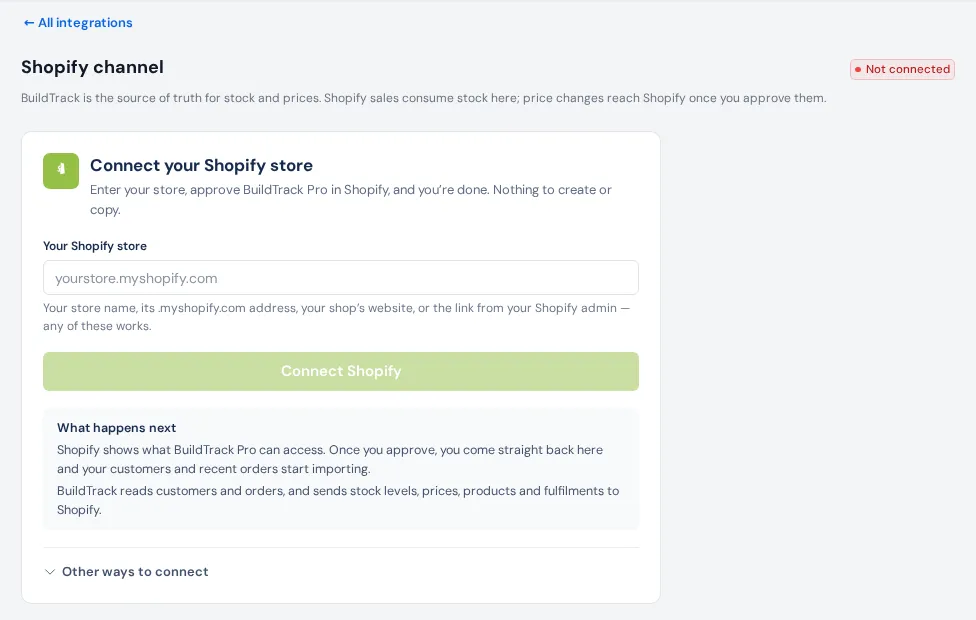
Manage connection (also Manage connection → on the Settings tab) shows the connected store and has:
- Sync Now: brings Shopify customers and orders in as contacts and deals.
- Disconnect: stops the channel. Contacts and deals already brought in are kept.
- Webhook signing secret: only for stores connected with a pasted access token. Paste your custom app's API secret key so Shopify's order messages are trusted.
Who can do it
The Shopify channel page needs Edit settings. The connection page opens with View settings. Pushing products, images and prices also needs Edit products.
If something's not right
- The pill says Token expired or Connection error: connect again on Manage connection. Your settings and linked products are kept.
- Health says Blocked: no warehouse is mapped. Do step 2.
- Prices on Shopify are 10% out: the tax setting doesn't match your store. See Shopify channel settings.